Your first week with Ipsion
This page is for people who run a business and don't write software. You don't need to code or build anything. The goal for the week is one task you do every week, running on its own, with you checking the result.
Your workspace is your own space in Ipsion. It comes with a few AI helpers called agents. Each one has its own chat in the list on the left. You talk to them in plain words, the way you would brief a new assistant. Main is the one you start with.
Our example is Maya, a made-up realtor. She holds an open house most weekends. Every Monday she writes to each visitor who signed in. We follow her through the week. Swap in your own weekly task wherever you see hers.
Before you start
- An invite code. If you don't have one, ask for a spot at ipsion.ai/alpha. If none of the roles on the form fits you, pick Other.
- One task you do every week. Pick the one that takes the most of your time and that you would gladly hand to a helper. Write it in one sentence. Maya's: "Every Monday I email everyone who came to my open house."
- No AI account. Your agents run on an account Ipsion provides. There is nothing to connect. See Do I need to connect Claude?
Day 1: Sign up and meet Main
- Follow Sign up for the alpha: enter your invite code, tell us about you, then press Create my workspace.
- Confirm your email. The email "Confirm your Ipsion AI signup" comes from hello@ipsion.ai. Press Confirm and start. The link works once, for 24 hours.
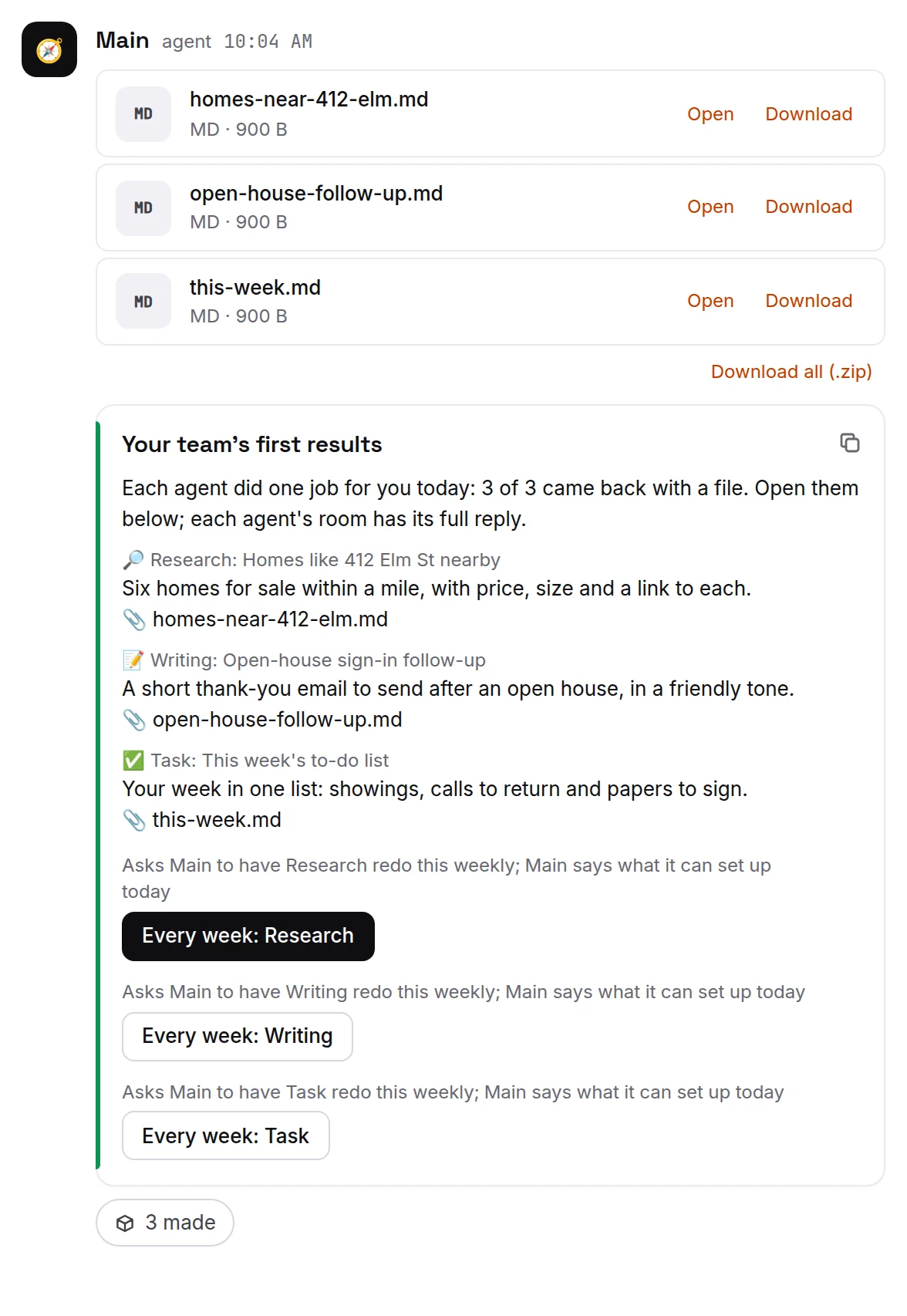
- Your workspace opens and sets itself up. It picks a small team of agents for your kind of work, and each agent does one first job for you. This takes a few minutes. You can leave the page open, or close it and come back later.
- When the team is done, Main posts a card called Your team's first results, with one file from each agent. Press Open on each file to see what that agent made. Nothing is sent to anyone.
- The card's Every week buttons ask Main to repeat one of those jobs. You can skip them for now. On Day 4 you set up the weekly task you picked.
Day 2: Hand Main one task, as drafts only
Tell Main what the task starts from, what you want back, and what good looks like. Ask for drafts only for now, so nothing goes out.
- In the list on the left, open Main.
- Press the paperclip at the left of the message box and attach what the task starts from. Send a file to your agent lists the files that work.
- Type what you want, in plain words, and press the send arrow.
Maya attaches the sign-in sheet from Sunday's open house, as a spreadsheet or a photo of the paper sheet, and writes:
Here is the sign-in sheet from Sunday's open house at 412 Elm St. Write a short follow-up email to each visitor. Thank them for coming, mention one thing they might have liked about the house, and ask if they'd like to see similar homes. Keep each one friendly and under 100 words. Give me the drafts here. Don't send anything.
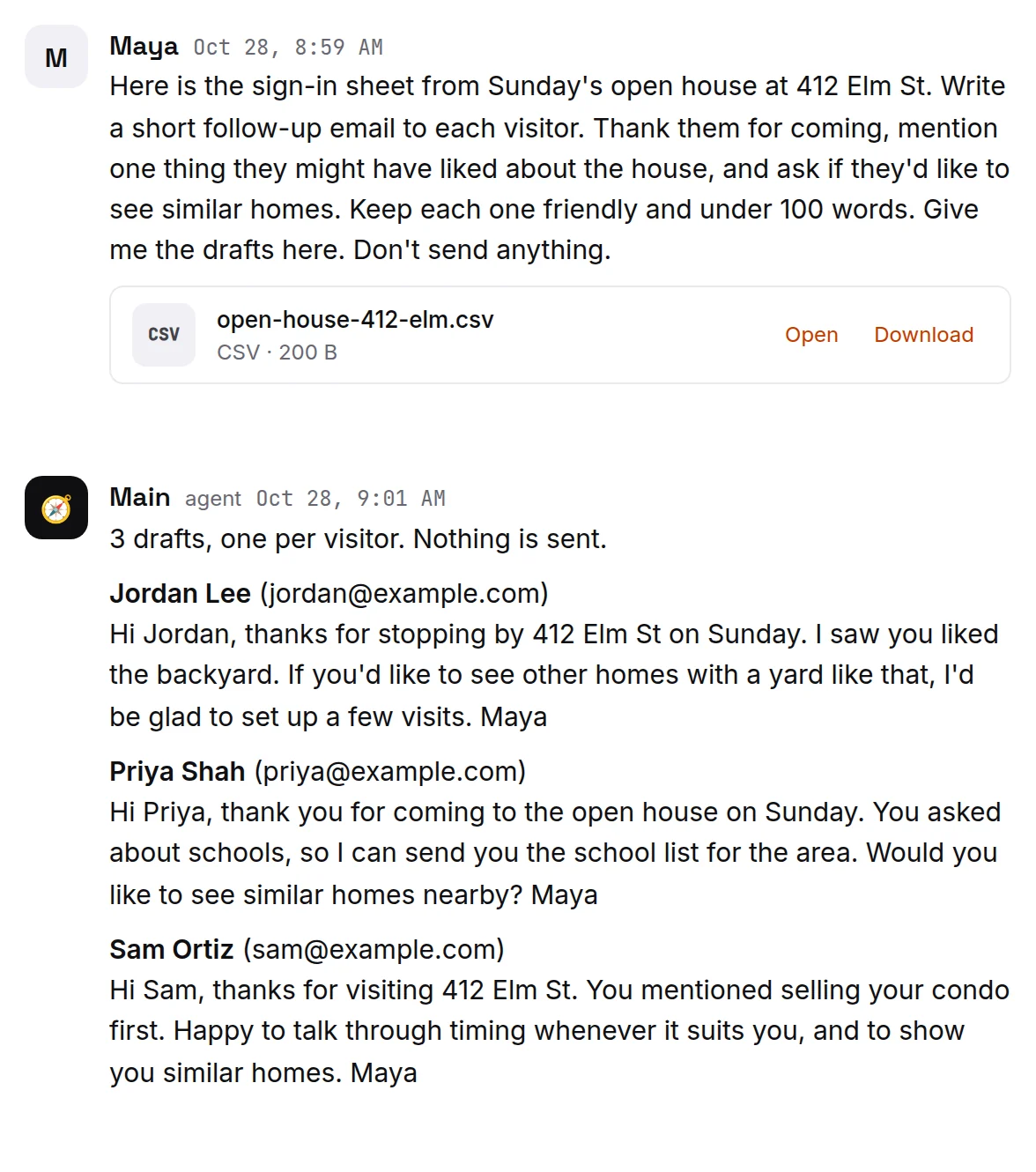
Main answers in the same chat. A longer job can take a few minutes; see "Is it still running?". If the sheet was handwritten, check each name and email address Main read from it.
Day 3: Correct the drafts
Read each draft as if you were about to send it. Then tell Main what to change, in plain words:
Shorter. Sign with my first name only. Never mention price. End with my phone number, 555-0100.
When the drafts read right, ask Main to keep the lesson:
Write down what you learned, so next week's drafts start this way.
You still send the emails yourself, from your own email, as you do today. Ipsion does not send from your own Gmail. If you later want an agent to send mail by itself, it does that from a separate mailbox you make for it. See Your Google account.
Day 4: Make it weekly
Once the drafts are close to what you would send, ask Main to run the task on a timetable:
Every Monday at 9 AM, write follow-up drafts for everyone on the sign-in sheets I sent since last Monday. Post them here. If I sent no sheet, ask me for one. Don't send anything.
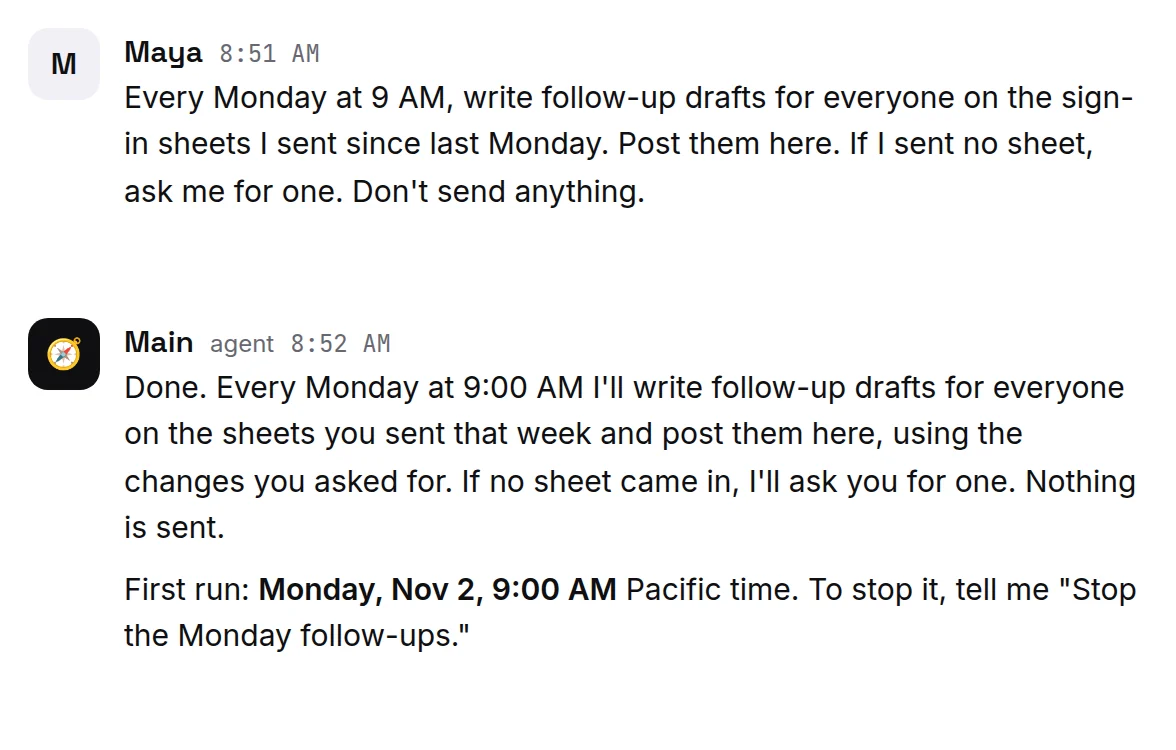
- Main sets this up as a scheduled job. It runs at that time even when you have closed Ipsion on your computer and on your phone.
- Main tells you when the first run is. Check that the day and time are right where you live.
- Your weekly job shows at the top of the chat as 1 scheduled. Press it, then Show, to see each job and when it runs next. You can also ask Main:
Which jobs have you set up for me, and when does each one run? - To change it, tell Main, for example
Move the Monday drafts to 8 AM.To end it:Stop the Monday follow-ups., or press Stop next to the job under 1 scheduled. More in Scheduled posts and jobs.
Day 5: Know when Main needs you
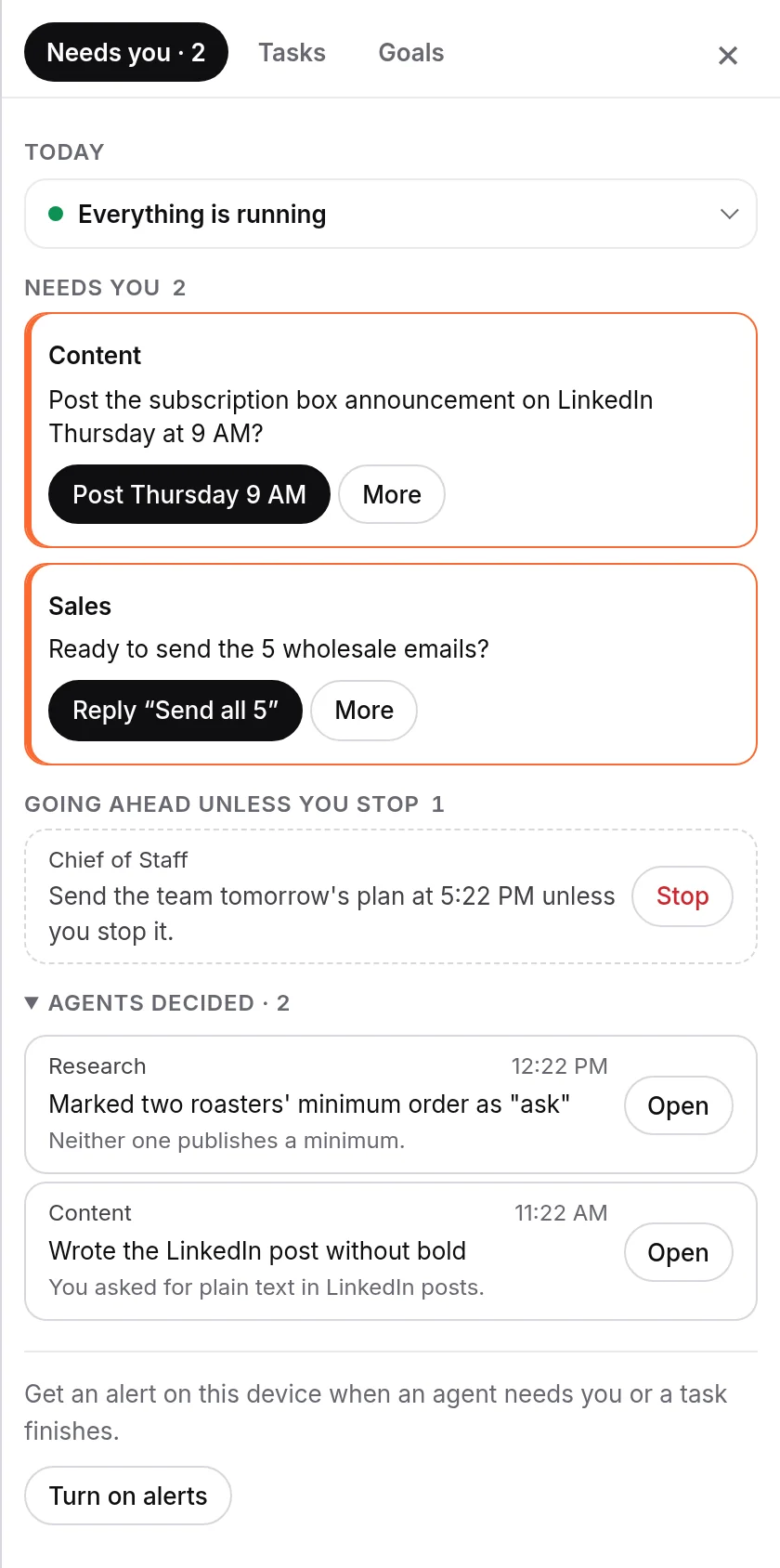
When Main has a question, needs your OK, or needs an account connected, it waits for you in Needs you.
- Press Needs you at the top right of the chat. It opens with a short summary of today. Below it, under Needs you, each card is one thing only you can decide. Its button is the agent's suggested answer; More shows the other choices.
- At the bottom, press Turn on alerts and allow alerts when your browser asks. Then press Send a test to check that one arrives.
- To answer from your phone, install the phone app. Needs you is there too: tap the inbox icon on its home screen.
Day 6 or 7: Send the new sheet
After your next open house, open Main's chat and attach the new sign-in sheet with one line, for example: Sheet from Saturday's open house at 88 Oak Ave.
Monday: The first run
At 9 AM, Main posts the drafts in its chat. Read them, send the ones you like from your own email, and tell Main what to fix. Ask it to write each fix down for next week.
When the weekly task runs the way you want, pick the next one. What to hand your agent has ideas, each with a first message to copy.
Questions people ask in the first week
- Do I need to know how to build automations? No. Describe the task in plain words, the way you would tell a person. Main works out the steps.
- Who fixes it when it breaks? If a run fails, Main is woken to fix it, try again and report. If it needs your call, it shows in Needs you under Jobs that need a look. If a usage limit is reached, nothing is lost: your message waits and goes out when the limit resets. For anything else, see Troubleshooting or email support@ipsion.ai.
- Do I have to stop using the tools I have? No. Keep them. Your contact list or client software (a CRM) is good at holding every client and their history in one place. Your email is where clients already know to find you. Main writes the drafts, and you send them.
- What does it cost? See Your free month, plans and invites.
Didn’t answer your question? Email support@ipsion.ai and say what you were trying to do.