Help · Getting started
Tutorial: install the phone app and let your agent use your Android phone
The Ipsion phone app is the same console on your phone: your chats, threads, tasks and Needs you. On an Android phone it can do one more thing: let your agent see the phone's screen and, when you allow it, tap and type in your apps for you. That part is new: tell us at support@ipsion.ai if a step doesn't match what you see.
Part 1: Install the app
The app is not in the App Store or on Google Play yet. During the alpha:
- iPhone: Apple emails you a TestFlight invite. Install the free TestFlight app from the App Store, open the invite on your iPhone, and tap Install. No invite? Write to support@ipsion.ai and we'll add you.
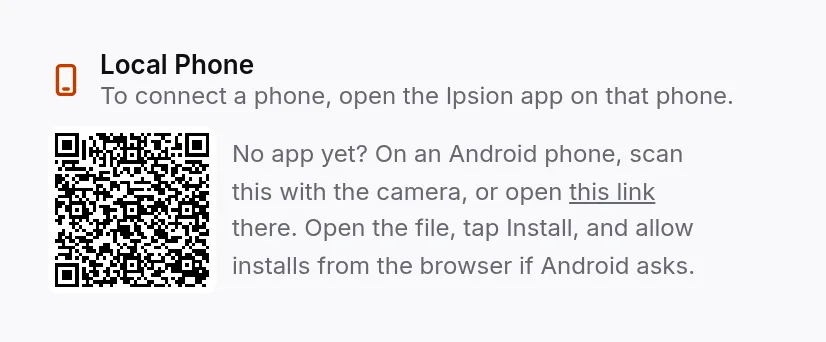
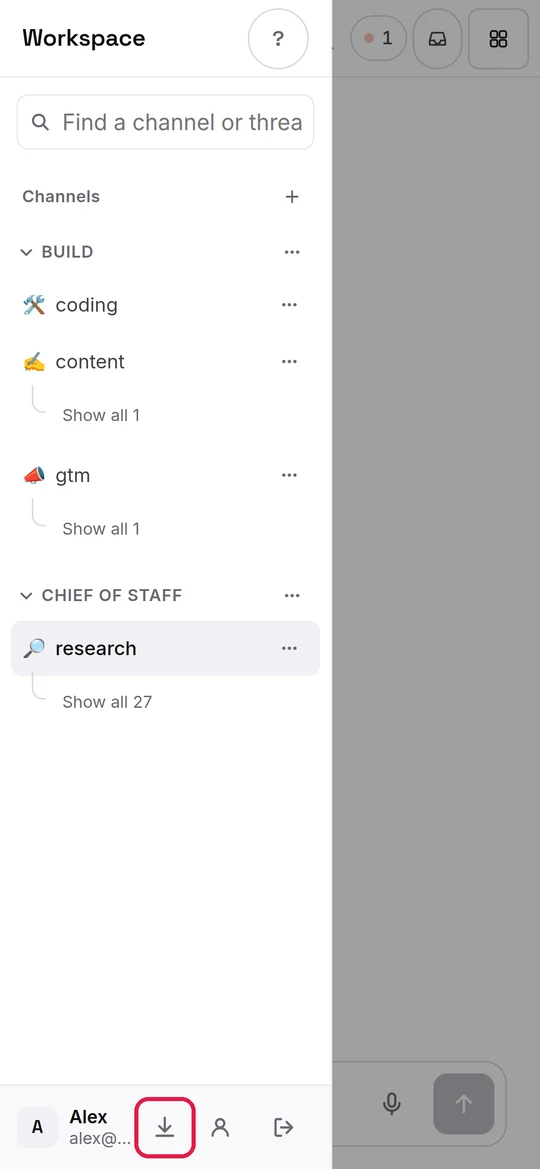
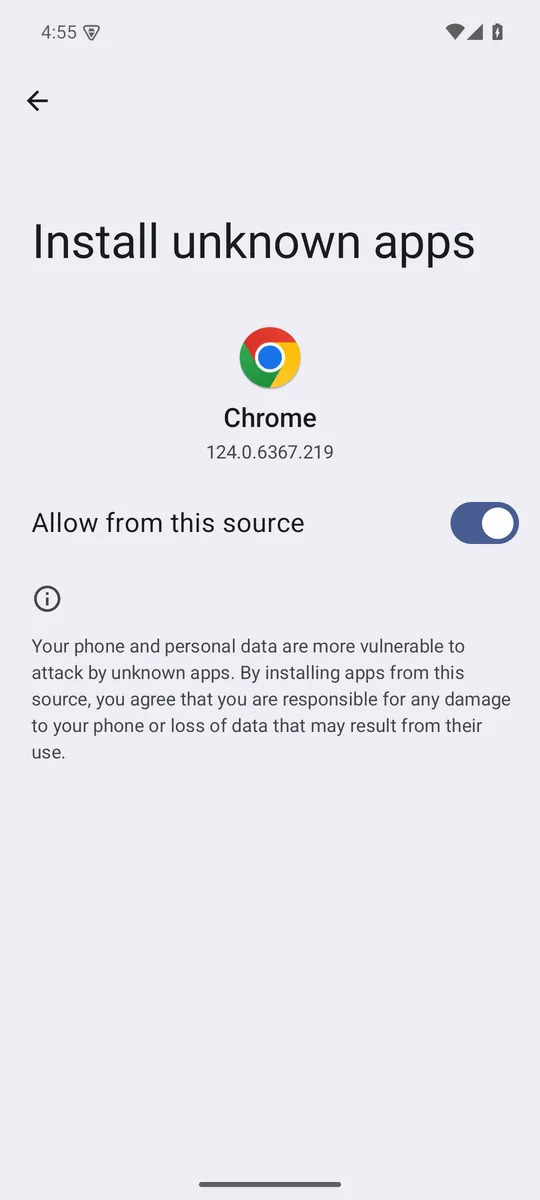
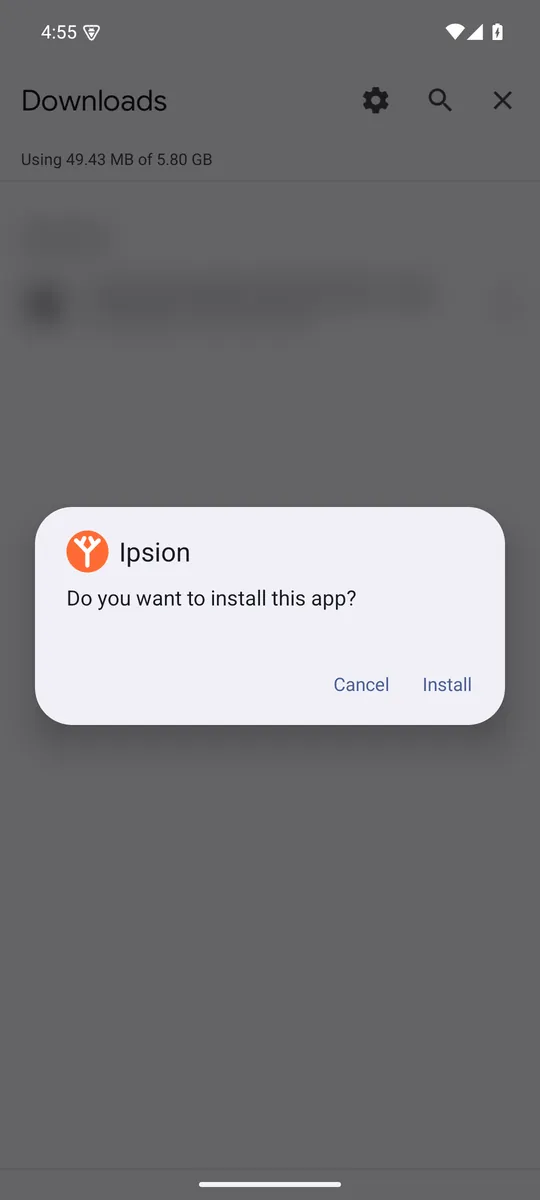
- Android: on the phone, open the web console at ipsion.ai/trial/console, open the menu at the top left, tap the download button at the bottom of it, and tap Android phone. Or, on a computer, open Live, then Local Phone, and scan the code shown there with the phone's camera. Open the downloaded file and tap Install. The first time, Android says your browser is not allowed to install apps: tap Settings, switch on Allow from this source, tap the back arrow, and tap Install. If Google Play Protect asks about the app, tap Install anyway.
Open the app and sign in with the same account you use on the web.
On iPhone, that's it. Letting your agent use your phone works on Android only. On iPhone you chat with your agents, answer Needs you, and watch them work under Live.
Part 2: Connect your Android phone
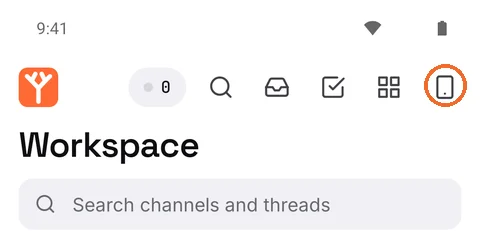
- On the app's home screen, tap the phone icon, the last one in the row of icons at the top. A screen titled Android opens.
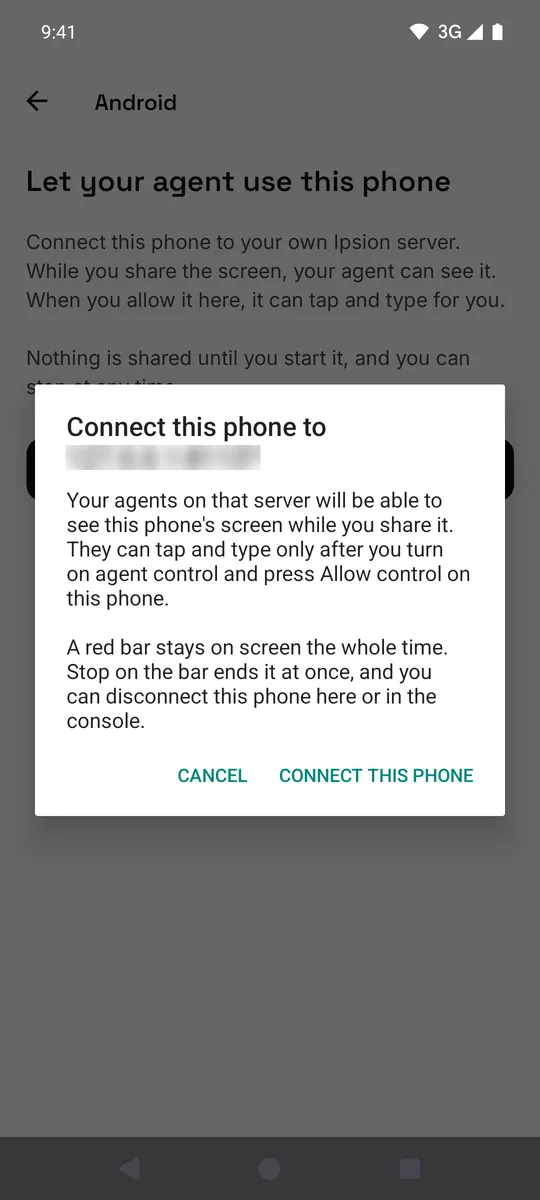
- Under Let your agent use this phone, tap Connect this phone. The app asks "Connect this phone to (your server)?" and says what that lets your agent do. Tap CONNECT THIS PHONE.
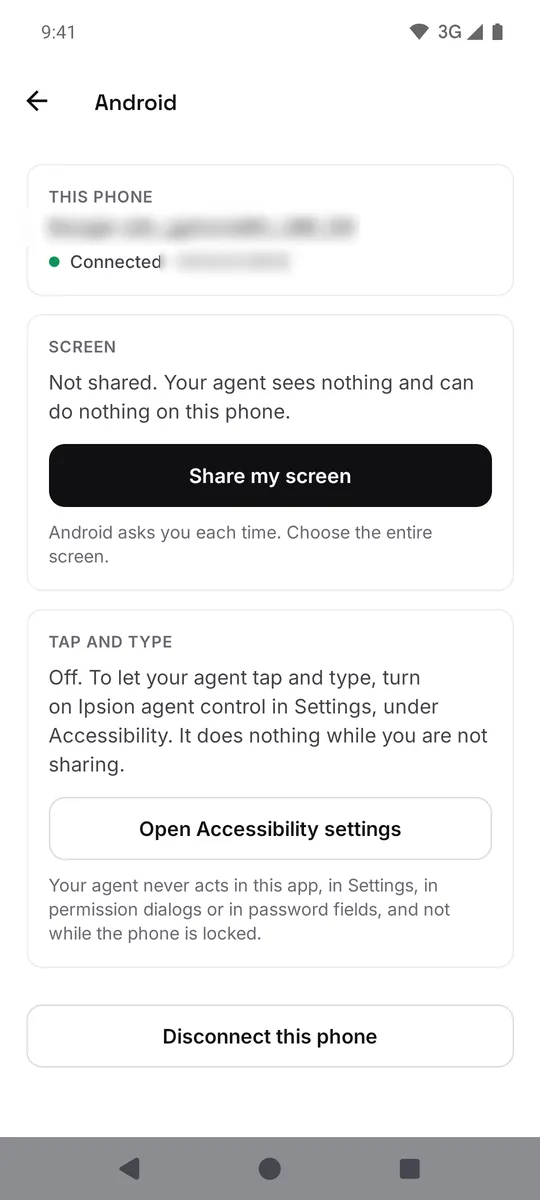
- The app now says Connected and "Not shared. Your agent sees nothing and can do nothing on this phone." In the console the phone shows under Live, Local Phone, as "Connected, not sharing".
Part 3: Share the screen
- In the same screen of the app, tap Share my screen.
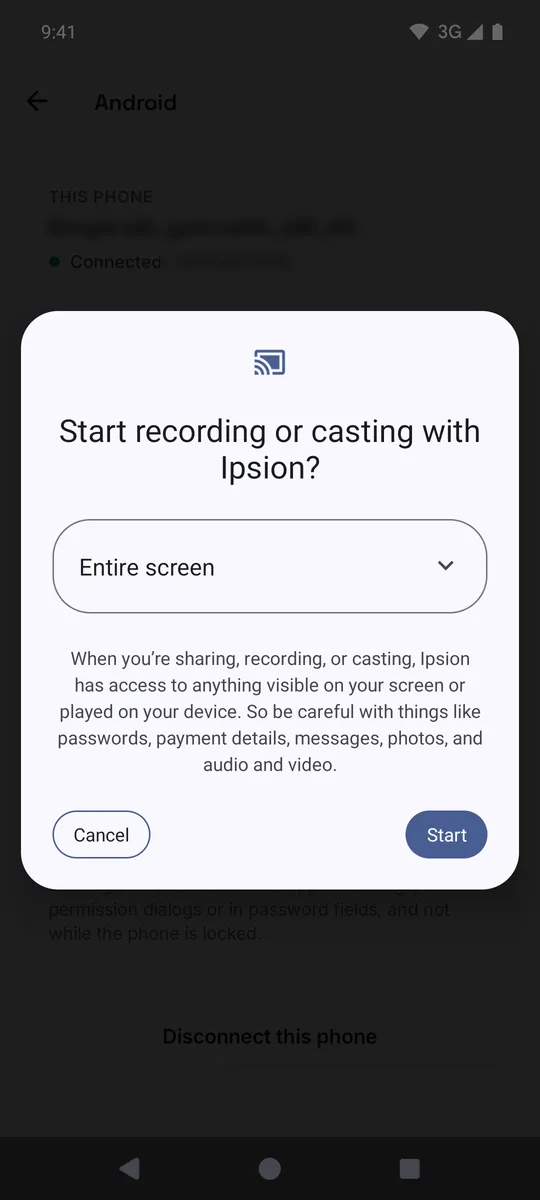
- Android asks each time: "Start recording or casting with Ipsion?". Leave Entire screen as it is and tap Start.
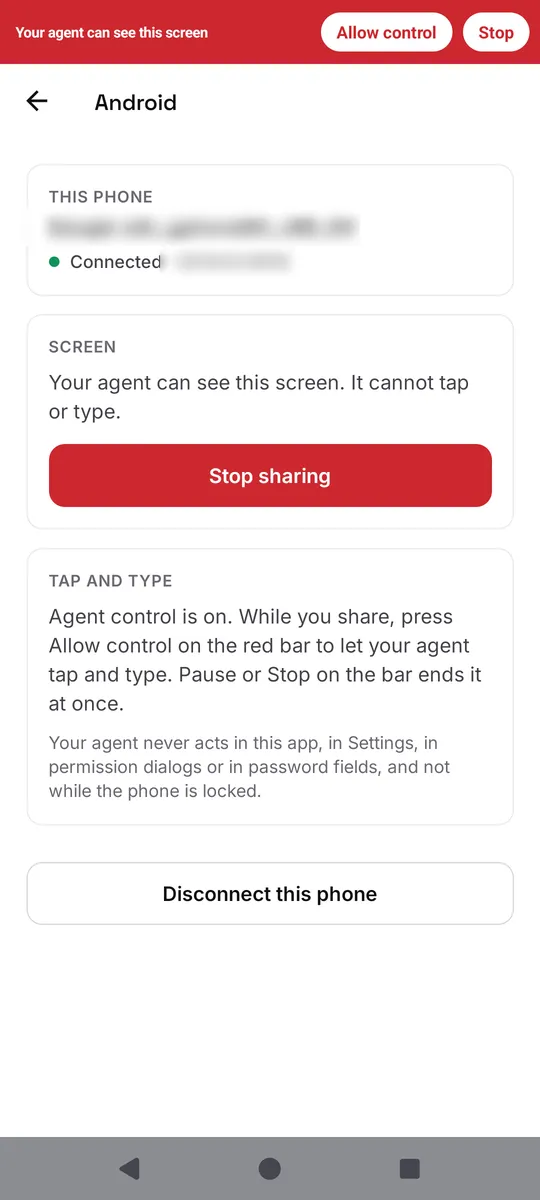
- The app now says "Your agent can see this screen. It cannot tap or type." and the button turns into a red Stop sharing. A notification, "Your agent can see this screen", with Stop, stays in your notifications.
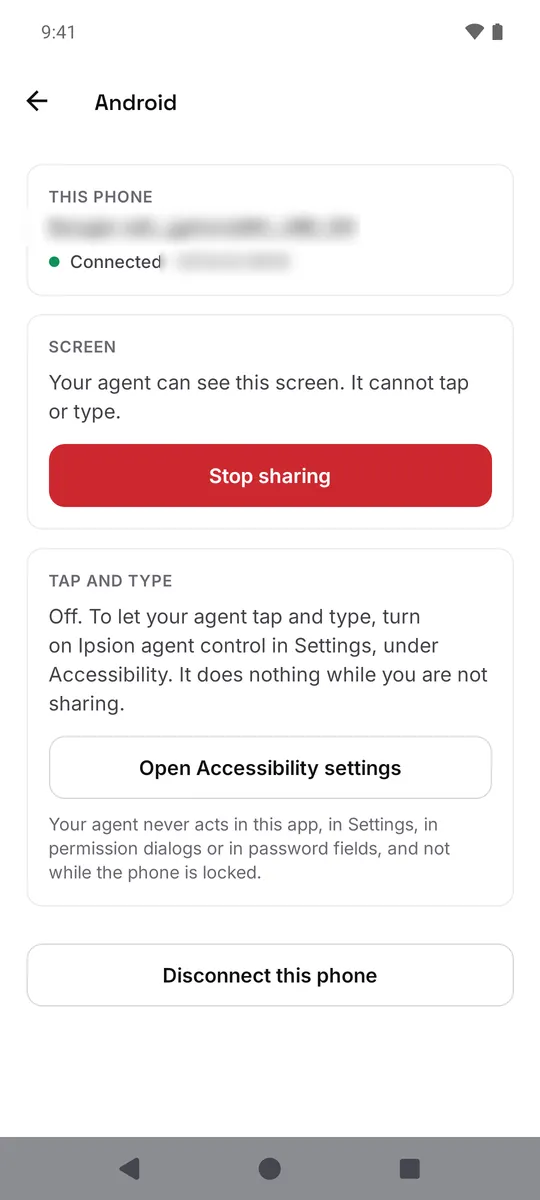
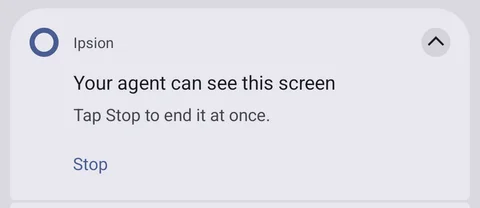
Your agent can now see the phone's screen, but it cannot tap or type. When the phone is locked, it sees nothing: the console says "Locked. Unlock the phone to let your agent see it."
Part 4: Let your agent tap and type
You do steps 1 to 4 once. Android treats this switch as sensitive, so for an app installed from a file it hides it behind a "restricted setting" first. It looks like an error, but it isn't one. You need a screen lock (PIN, pattern or password) on the phone.
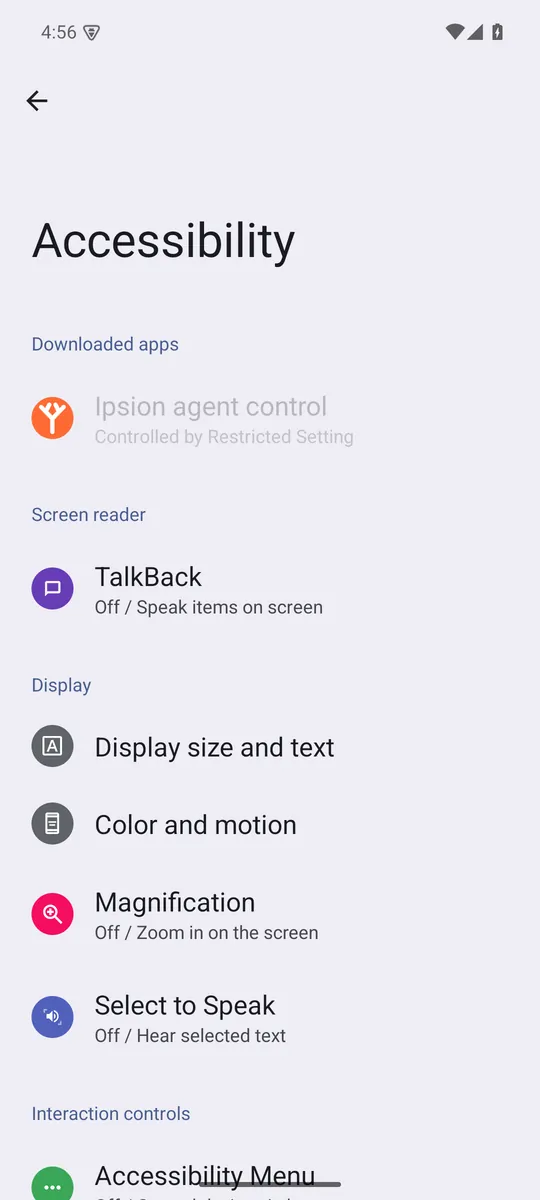
- Under Tap and type, tap Open Accessibility settings. Under Downloaded apps, tap Ipsion agent control. It is grey and says "Controlled by Restricted Setting".
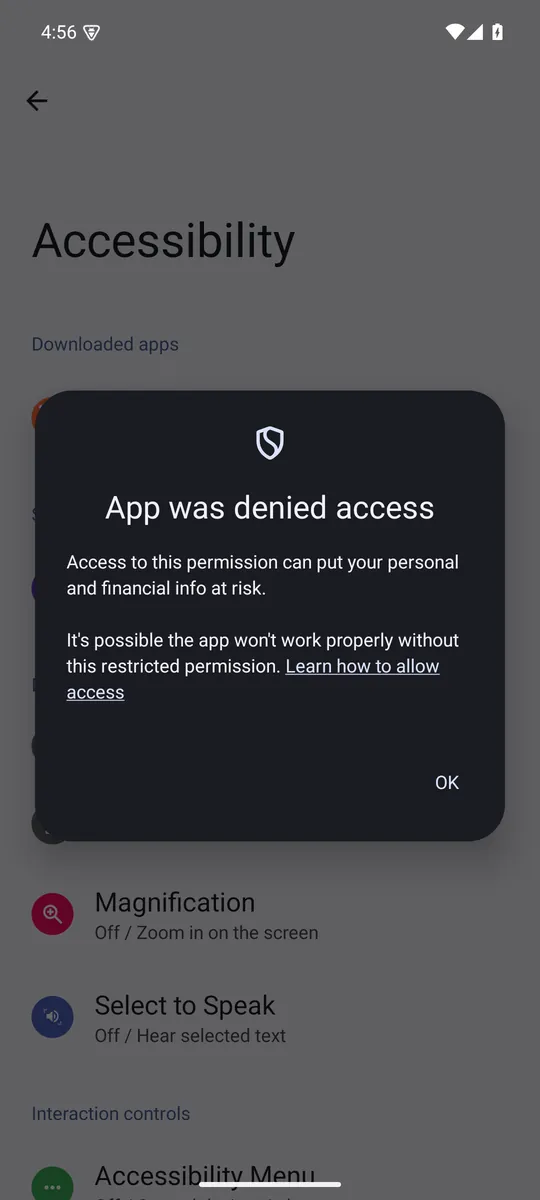
- Android shows App was denied access. Tap OK. Don't skip this tap: the option in the next step only appears after you have seen this message once.
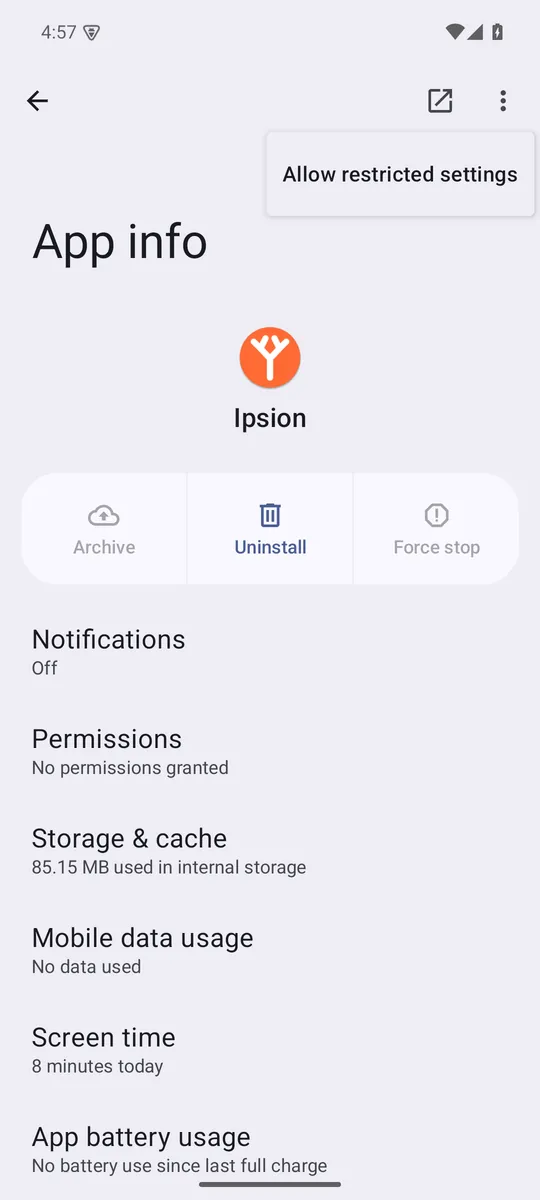
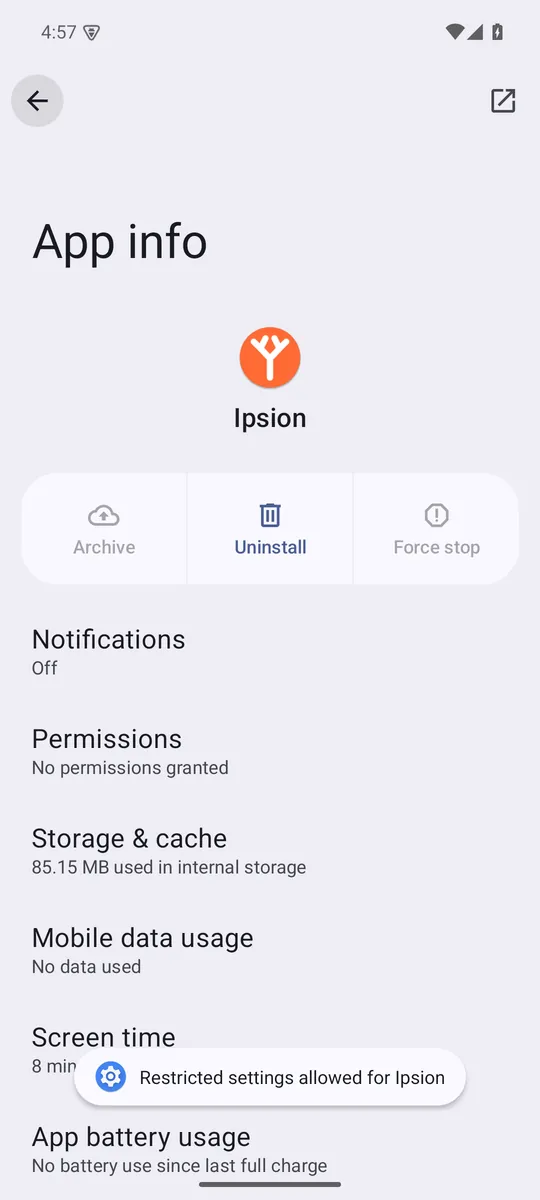
- Open the phone's Settings, then Apps, then Ipsion. Tap the three dots at the top right, tap Allow restricted settings, and enter your screen lock. Android confirms: "Restricted settings allowed for Ipsion".
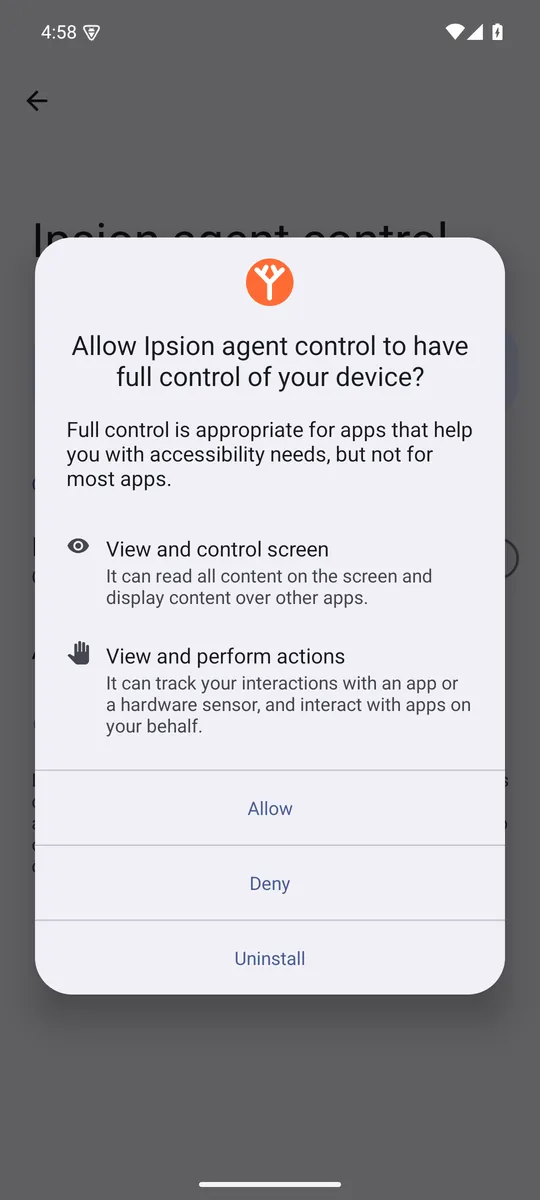
- Go back to Settings, Accessibility, Ipsion agent control. Switch on Use Ipsion agent control. Android asks "Allow Ipsion agent control to have full control of your device?": tap Allow.
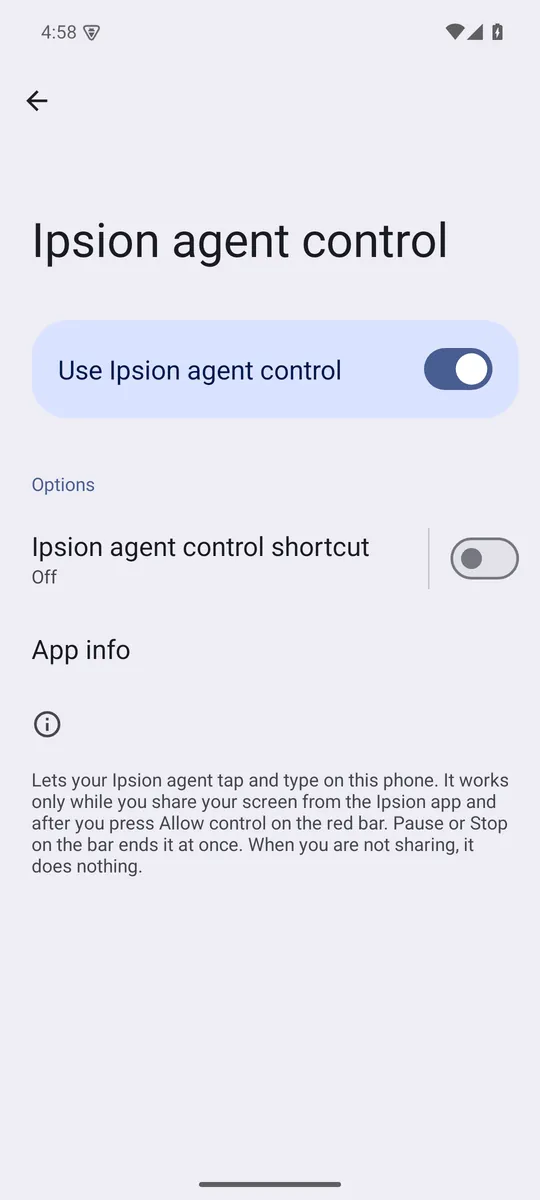
Turning this switch on gives your agent nothing yet. The app can act only while the phone is connected, the screen is shared, and you have pressed Allow control.
Once the switch is on, a red bar shows at the top of the screen whenever you share: "Your agent can see this screen", with Allow control and Stop. In the app, under Tap and type, the card now starts "Agent control is on".
- While the screen is shared, tap Allow control on the red bar. The bar changes to "Your agent is controlling this phone", with Pause and Stop, and a red frame goes around the screen. Your agent can now tap and type.
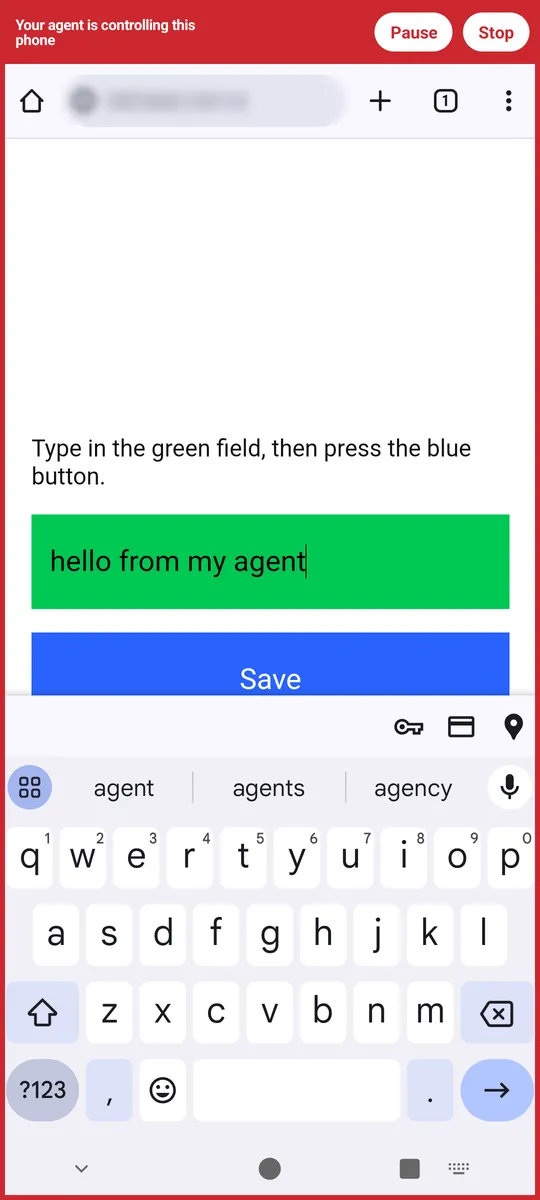
- Ask your agent for the job in chat, as usual: "On my phone, open the delivery app and reorder last week's groceries". You can watch it in the phone's tab under Live, Local Phone.
Ipsion agent control is built to stay out of the Ipsion app itself, Settings, permission dialogs and password fields, and not to act while the phone is locked. Sign-ins and passwords stay yours to type.
If your agent does nothing on the phone for 10 minutes, control turns off by itself and the agent goes back to seeing only. Press Allow control again to give it back.
Part 5: Take over, or stop
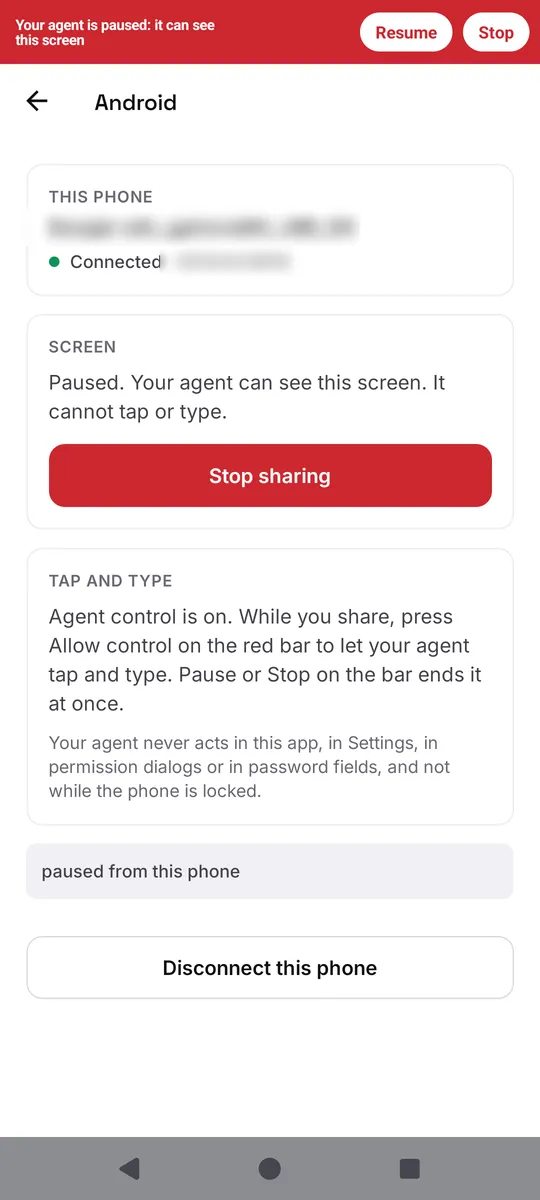
- Pause on the red bar stops your agent acting at once. The bar then says "Your agent is paused: it can see this screen"; Resume gives control back.
- Take over in the phone's tab in the console stops your agent so you can use the phone yourself; Hand back returns the controls.
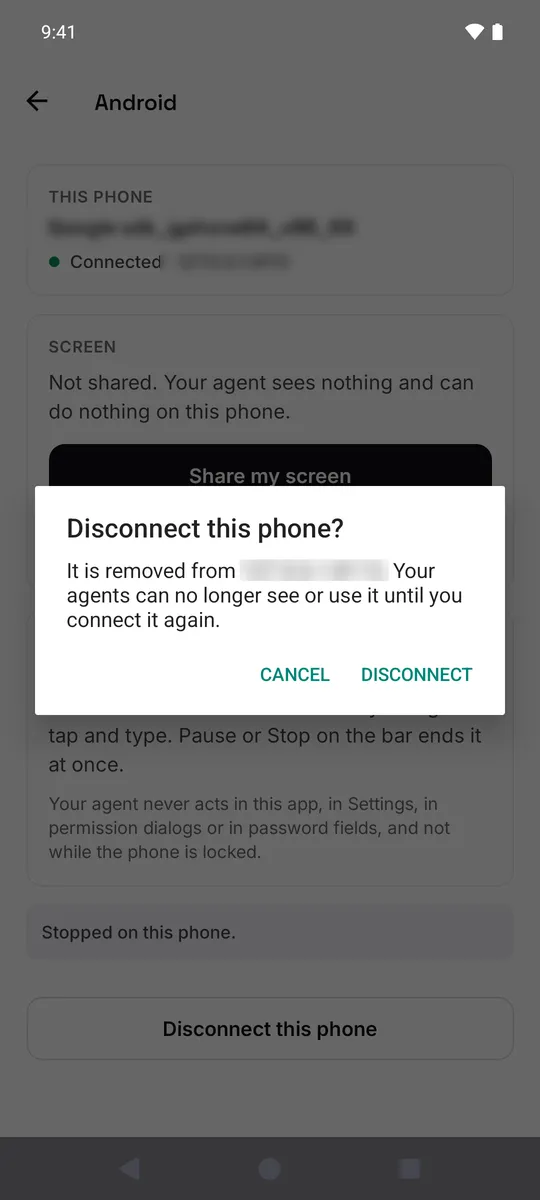
- Stop on the red bar or in the notification, Stop sharing in the app, or Stop in the console ends sharing at once. The app then says "Stopped on this phone."
- To remove the phone for good, tap Disconnect this phone in the app, then DISCONNECT, or Revoke on its card in the console.
Good to know
- Keep the phone unlocked and the screen on while your agent works on it.
- After the phone restarts, or if the app is force-stopped, Android may switch Ipsion agent control off again. Do step 4 of Part 4 again. You don't need to repeat steps 1 to 3.
- On Samsung, Xiaomi and other phones, the menus can have other names, for example "Installed apps" instead of "Downloaded apps". The steps are in the same order. On Samsung, Auto Blocker (Settings, Security and privacy) blocks installs from a file while it is on.
- The agent acts with your apps and accounts as they are signed in on the phone. Allow control only for jobs you would be happy to approve, and watch the first few.
- Your computer too? See Tutorial: install the Mac or Windows app and let your agent use your computer.
Didn’t answer your question? Email support@ipsion.ai and say what you were trying to do.