Smart glasses: Meta Ray-Ban
Smart glasses is in early access: invite only for now. If Smart glasses is not in your Profile, it is not switched on for your account yet.
With Meta AI glasses, such as Ray-Ban Meta or Oakley Meta, the photos and videos you take reach your Smart devices agent in Ipsion. Your agent keeps each one, sums it up, and passes anything to do to your task agent.
Two ways in
- Through Photos, in the regular Ipsion app on iPhone and Android. The Meta AI app imports what you take with the glasses into your phone's photos, and Ipsion sends the new ones to your agent when the app opens or comes back to the front.
- Straight from the glasses, in the Ipsion iPhone test build with the glasses connection. A press of the glasses' capture button sends the photo at once, with no Photos in between. This way also adds where each photo was taken, and lets your agent answer out loud in the glasses.
The app shows one way or the other: the test build uses only the direct way.
Before you start
- Meta AI glasses already paired with your phone in the Meta AI app. Pairing and Bluetooth between the glasses and the phone are done there, not in Ipsion.
- The Ipsion app, signed in. For the direct way: an iPhone with iOS 17.2 or later and the Ipsion test build with the glasses connection, which we send you with your invite.
Way 1: Through Photos (iPhone and Android)
- In the Meta AI app, turn on auto-import, so the glasses' photos and videos reach your phone's photos.
- In Ipsion, tap Profile at the bottom, then Smart glasses under Reach you.
- Tap Connect, then allow Ipsion to use your photos. Allow all photos: if you pick only some, Ipsion can't see the new ones from the glasses.
Only pictures and videos taken after you tap Connect are sent; older ones never are. New ones go when the app opens or comes back to the front. In the background, the phone runs it when the system allows. The card shows Last sync and Sent today.
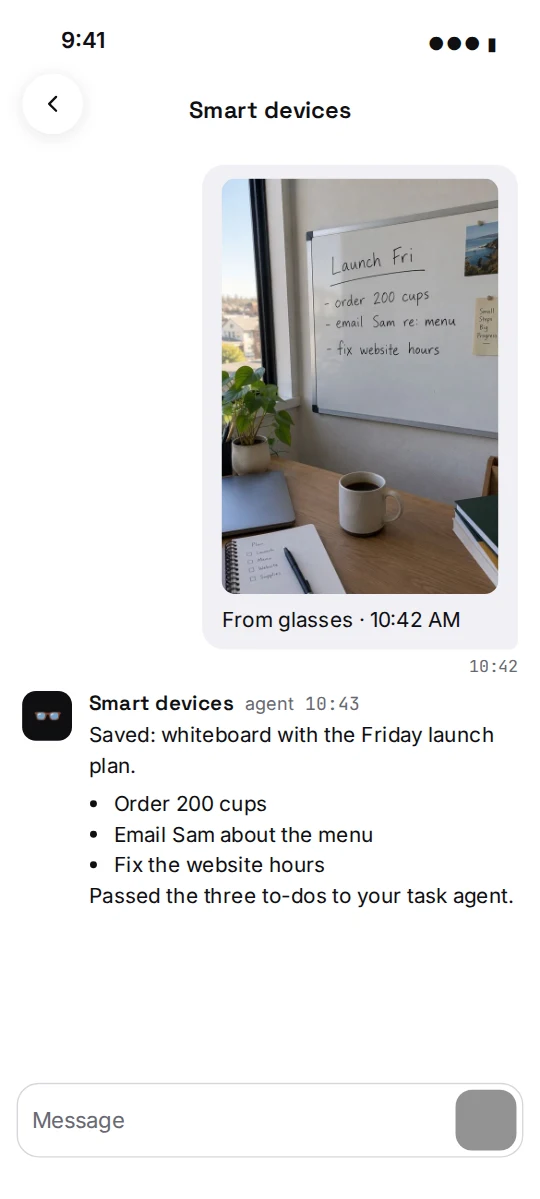
Each batch arrives in your Smart devices agent's chat captioned like "From glasses · 10:42 AM", with the date too when it was not today.
Under Talk, tap Talk to record a voice note for your agent, and Send now to send it. With the glasses connected over Bluetooth, it records through them.
To stop, tap Disconnect. New pictures from the glasses stop going to your agent; everything it already has stays.
Way 2: Straight from the glasses (iPhone)
Part 1: Turn on Developer Mode in the Meta AI app (first time only). Ipsion's glasses connection is not in Meta's app list yet, so the Meta AI app needs Developer Mode to let it connect.
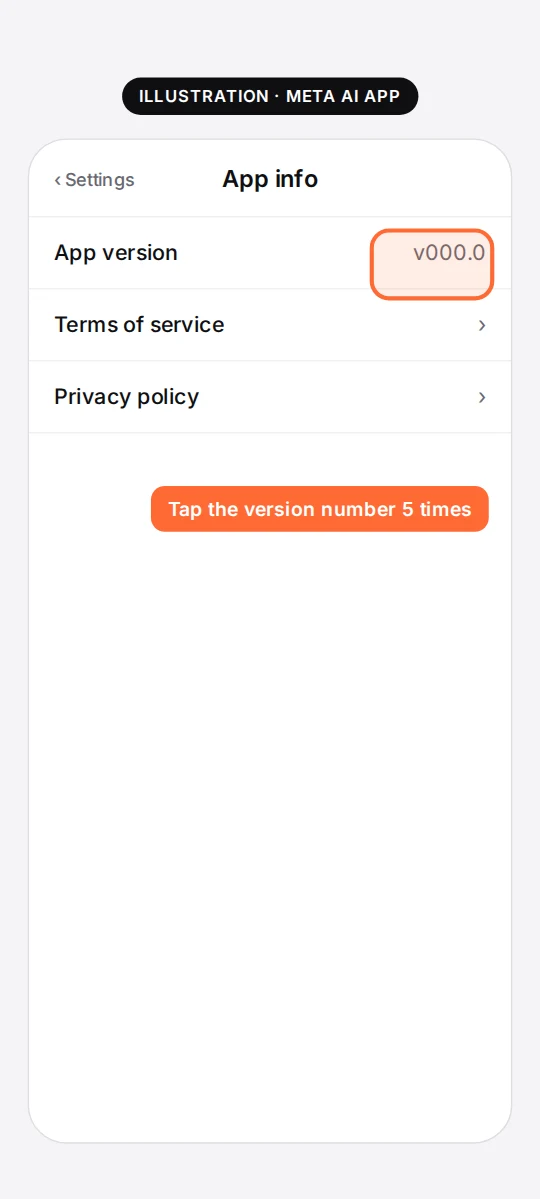
- On the iPhone, open the Meta AI app and go to Settings, then App Info.
- Tap the App version number five times. A Developer Mode switch appears.
- Turn the switch on, then tap Enable to confirm.

Part 2: Connect the glasses.
- In Ipsion, tap Profile, then Smart glasses under Reach you.

- On the Direct from the glasses card, tap Connect glasses.

- The Meta AI app opens and asks you to allow Ipsion. Allow it.
- It then asks to allow the glasses' camera for Ipsion, which it needs, and the microphone, so videos have sound. Each one opens the Meta AI app and comes back.
- If the iPhone asks whether Ipsion may use Bluetooth, tap Allow. It may also ask about devices on your local network: allow that too, so videos can come over the glasses' Wi-Fi.


- Back in Ipsion, the card shows your glasses and connected, with a green dot. Ipsion may ask once to use your location while the app is open. Allow it if you want each photo to say where it was taken; if you don't, the photos still go.
Part 3: Use it.
- Press the capture button: a photo. Ipsion sends it to your Smart devices agent.
- Press and hold: start a video with sound. Press again to stop it and send it.
- The first video asks the iPhone to join the glasses' Wi-Fi: tap Join. For 2 minutes after a video, the glasses stay joined, so the next one starts at once. If a video won't start while Ipsion is closed, open Ipsion once, tap Join if the iPhone asks, then hold again.
- A double press with no video recording only reminds you how to record.
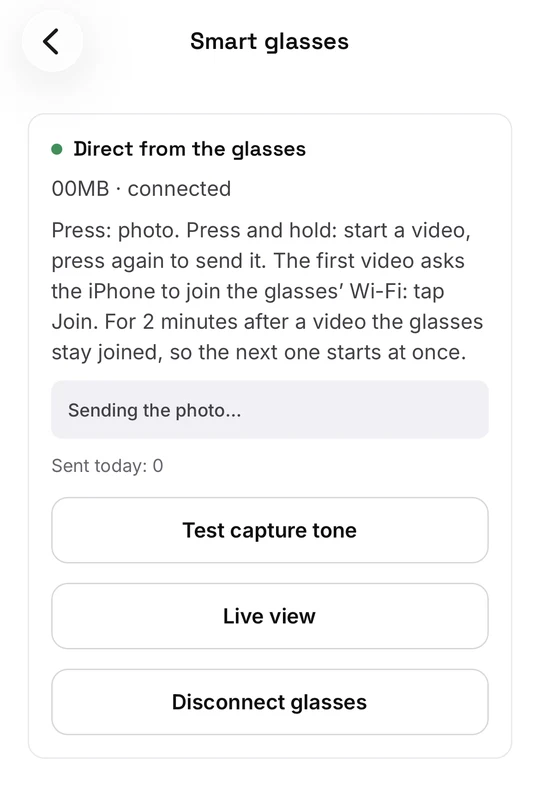
On the card you also have:
- Sent today: how many photos and videos went today.
- Live view: shows what the glasses see, refreshed twice a second. While it is on, Send what I see sends that picture to your agent. Stop live view turns it off.
- Test capture tone: plays the shutter sound, so you can check you hear it in the glasses.
- Disconnect glasses: Ipsion stops getting photos and videos from them. To connect again later, tap Connect glasses.
Each photo or video arrives in your Smart devices agent's chat captioned like "From glasses · 10:42 AM", then the place if you allowed location, for example "Ferry Building, San Francisco".
Talk-back: when your agent's answer to a photo is meant to be heard, it is said through the glasses in a few words (10 at most), while the glasses are connected. That line is not shown in the chat.
If something goes wrong
Nothing arrives.
- Through Photos: check that auto-import is on in the Meta AI app and that the picture is in your phone's photos. Only pictures taken after you tapped Connect are sent. Open Ipsion, or bring it to the front, to send what is waiting.
- If the card says "No connection. The pictures will be sent later.", they go by themselves once the phone is back online.
- Straight from the glasses: if the card says "Not sent:" and why, take the photo or video again. If Ipsion is in the background at the time, you get this as a notification titled Glasses.
- "This account has no glasses room yet." means your Smart devices agent is not set up on your account yet. Tell us at support@ipsion.ai.
The glasses show as not connected (direct way).
- Put the glasses on, or open the arms, until the Meta AI app shows them connected.
- If the connection stopped, Ipsion reconnects by itself: press the capture button again in a few seconds, and tap Join if the iPhone asks. If the glasses are busy or asleep, put them on and close other apps using them.
- If the card says the glasses refused Ipsion, check that Developer Mode is still on in the Meta AI app (Part 1).
- The card also tells you when the glasses need an update, are too warm or have a low battery. Do what it says, then try again.
Permission denied.
- Photos: if the card says Ipsion needs Photos access, or that access is limited to the pictures you chose, open your phone's Settings, then Ipsion, then Photos, and allow all photos. Then open the Smart glasses screen again.
- Glasses camera: if the card says camera access for the glasses was not allowed, tap Connect glasses to be asked again, and allow it in the Meta AI app.
- Location: no place line on photos means location is off for Ipsion. The photos still go.
Good to know
- In the Meta AI app, Ipsion shows under Meta AI settings, App connections, Developer mode apps.
- Straight from the glasses, Ipsion gets only what you capture with the button or send from Live view. Nothing from your phone's photo library is sent. Through Photos, only pictures from the glasses are sent: those in the Meta AI app's albums, or taken with the glasses' camera.
- Something doesn't match what you see? Tell us at support@ipsion.ai.
Didn’t answer your question? Email support@ipsion.ai and say what you were trying to do.