Do I need to connect Claude?
On AI 100, AI 200 and AI 400: no, there is nothing to connect. Your agents run on an AI account Ipsion provides. They are ready to work as soon as your workspace opens.
You don't need a Claude or Anthropic account of your own.
On Ipsion, on your own AI plan: yes. Your agents run on your own Claude Code or Codex plan: Claude Pro, Max, Ultra or Team, or ChatGPT Plus, Pro or Business. You pay its provider for it, and Ipsion includes no AI usage on this plan. After you add your card, the console opens the Power your team window (or press Connect your AI plan under Your plan). Pick Claude plan (Pro or Max) or ChatGPT (Codex) and sign in on the provider's own page. Your 14 free days start when you are connected, and nothing is charged before then.
Not connected after 24 hours? If you haven't connected your AI plan, and haven't sent your agents a message, within 24 hours of your workspace being set up, Ipsion may put your server to sleep. Nothing is lost, and your free days have not started. When you sign in again, it wakes up: the console says "Your agent is waking up" for a short while. Then connect your plan as above.
If you see "Power your team" or "Connect your AI account"
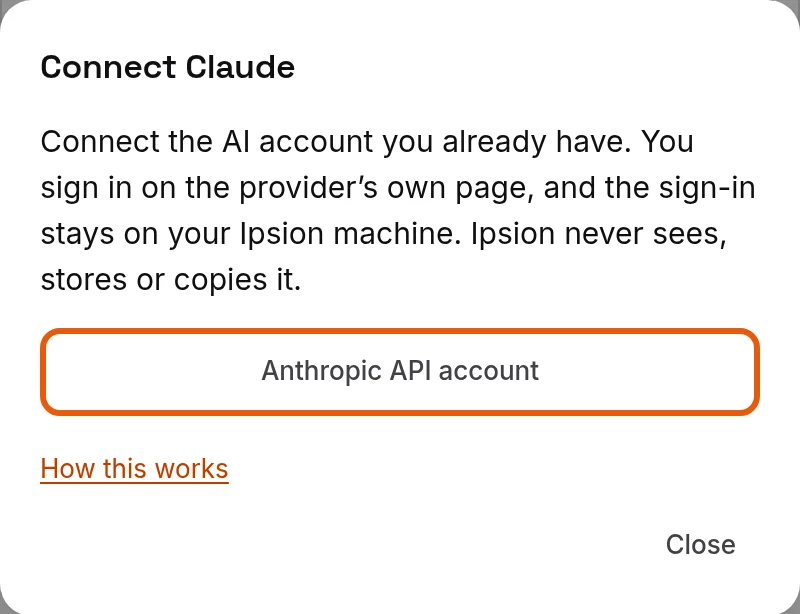
That window lets your agents run on an AI account you already have. You sign in on the provider’s own page, and the sign-in stays on your Ipsion machine, never in chat.
- Claude (your Anthropic API account): pick Anthropic API account, click the link, sign in, then paste the code that page shows into the box and press Enter. A workspace set up under a company contract may also offer Claude plan (Pro or Max). On the phone app, do this from the console on a computer.
- ChatGPT (Codex) (a ChatGPT plan that includes Codex): open OpenAI’s sign-in page and enter the code shown. The code works for 15 minutes. If OpenAI refuses it, switch on device code login in your ChatGPT security settings. The window closes by itself once you are signed in.
- One AI account at a time. Your agents run on Claude or on ChatGPT, not both. While ChatGPT (Codex) is signed in, even switched off, the Claude choice reads Disconnect ChatGPT (Codex) first and can't be pressed; while Claude is connected, the ChatGPT choice reads Disconnect Claude first. To change, press Disconnect on the connected one in Connected accounts, then connect the other. If ChatGPT is signed in but switched off, its choice reads Switch on and turns it back on with no new sign-in. The phone app does the same.
- I don’t have either yet: your agents keep working on the account Ipsion provides, and the window stops asking.
- Later: closes the window. It stays closed for your account on every sign-in, tab and app.
Where this window can show, you can also connect Claude later from Connected accounts, under AI accounts:

Which AI model do my agents use?
On AI 100, AI 200 and AI 400, your agents use leading AI models (LLMs) from Claude, GPT and Gemini that Ipsion connects for you. On Ipsion on your own AI plan, they use the models your Claude or ChatGPT plan gives you.
How Ipsion is different from Claude and Codex
Claude and Codex are excellent at what they do: they write, reason and code very well, in a chat or in your code editor. Ipsion doesn't replace them: on your own AI plan, your Ipsion agents run on your Claude Code or Codex plan.
Compared with using Claude or Codex on their own, Ipsion adds:
- Work that keeps running. Your agents work on your own server in the cloud, so they carry on when you close the chat or turn off your computer.
- Every channel, the same agents. Reach them from the web console, the Mac and Windows app, the phone app, and your own WhatsApp chat.
- Memory. They remember you and your work from one conversation to the next, and you can bring in what other AI tools already know about you.
- Schedules. Ask for a daily summary or a post at a set time, and it runs on your server at that time.
- Its connectors. Connected accounts such as GitHub, Notion, Slack and WhatsApp (and Zoom, where your server has it), plus a shared Browser and a Computer your agents use for any website.
Didn’t answer your question? Email support@ipsion.ai and say what you were trying to do.