Help · Using Ipsion
Send a file to your agent
You can give your agents files to work with: a spreadsheet to total, a PDF to summarize, a recording to transcribe. Attach the file to a message, then say what you want done with it.
In the console (web and desktop app)
The desktop app shows the same console, so the steps are the same.
- Open the agent's channel or thread.
- Press the paperclip at the left of the message box and pick one or more files. You can also drag files onto the conversation, or paste a picture straight into the message box.
- Each file shows above the message box. A large file shows its progress while it uploads. Press × on a file to take it off.
- Type what you want, then send.

In the phone app
- Open the agent's chat and tap the paperclip next to the message box.
- Choose Photos (pictures and videos), Camera (take a picture now) or Files (anything saved on the phone).
- Type what you want, then send.
If the phone says Camera access is off, turn it on for Ipsion in your phone's Settings. An iPhone HEIC photo goes through Photos, which turns it into a JPEG; from Files it isn't accepted.
Which files work, and how big
- Up to 5 attachments per message.
- Pictures (PNG, JPEG, GIF, WebP) show in the chat. Up to 14 MB of pictures per message; big photos are made smaller before they go, and your agent still sees the whole picture.
- Other files go up in pieces, up to 500 MB each, videos included.
- From the console you can send any type of file. PDF, Word, text, CSV, JSON, audio and video go to your agent as what they are; any other type arrives as a file your agent can open with its own tools.
- From the phone's Files, these work: pictures, PDF, Word, text, Markdown, CSV, JSON, RTF, audio, video and subtitle (SRT) files. Send other types from the console.
Where your file goes
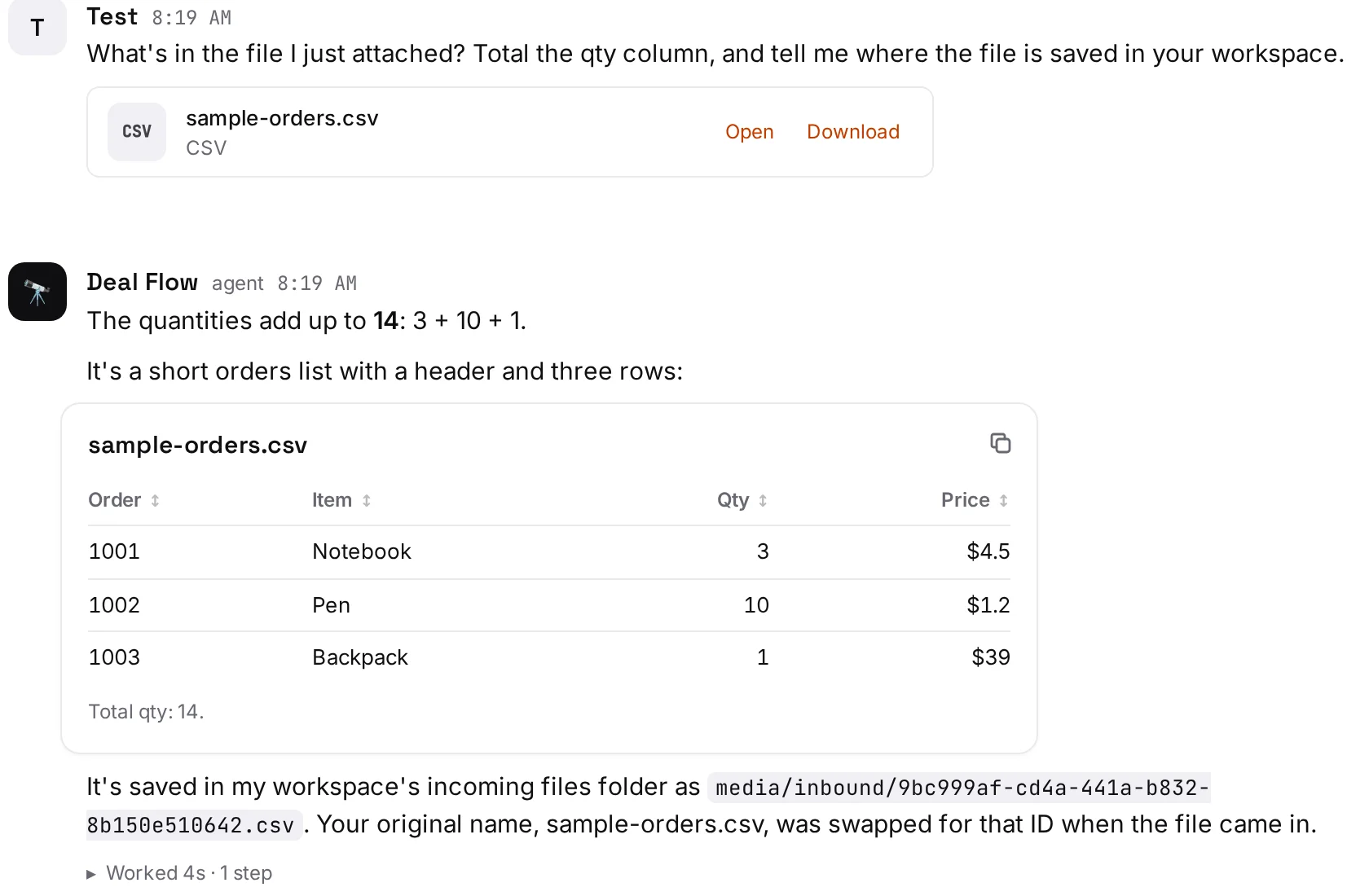
The file is saved in the workspace of the agent you sent it to, on your own Ipsion server, in its incoming files folder (media/inbound). It gets a new file name there; your agent is told the name you gave it. Your message keeps the file, with Open and Download, so you can get it back later.
Asking your agent about it
Say what you want in the same message as the file: "Total the qty column", "Summarize this PDF in five bullets", "Make captions for this video". Your agent can also tell you where it saved the file. If you want another agent to use it, send the file to that agent too.
When it doesn't send
- "… is too big: up to 500 MB per file" or "up to 14 MB in all per message": send a smaller file, split it, or send a link to it that anyone can open. A private Google Drive link won't open for your agent; see Give your agents access.
- "Up to 5 attachments per message": send the rest in a second message.
- "Couldn't upload …" or "Couldn't read …": the file was taken off; attach it again. On a weak connection, try on Wi-Fi.
- "This account takes one picture and one file per message": your server takes one of each; send the others in separate messages.
- "… can't be sent here" on the phone: that type isn't on the phone's list above. Send it from the console.
- Lots of pasted text arrives as a file named
pasted-text.md, so you don't need to attach it yourself. See Troubleshooting.
Didn’t answer your question? Email support@ipsion.ai and say what you were trying to do.