Scheduled posts and jobs
When an agent schedules something for you, such as a post on X or LinkedIn, a reminder or a daily summary, it sets it up as a job on your own Ipsion server. The job waits there until its time, then runs, even with the console and the phone app closed.
Not in X's or LinkedIn's own scheduler
A post your agent schedules stays on your server until its time, so it doesn't show in X's or LinkedIn's own list of scheduled posts. That is expected. Nothing reaches the platform before the time comes. If you want the posts in the platform's own scheduler, ask your agent for each post's text and media and load them there yourself. Ask it to cancel its own copies first, so nothing goes out twice.
Your OK comes first
A post or message goes out only after you OK its exact text, media and where it goes. Your agent asks in its chat, and the ask also waits in Needs you.
Where to see what's scheduled
- In the chat where you asked: under the agent's message, a line such as "3 scheduled runs". Press Show to list each one with its start time, for example "starts Tue 9:00 AM · in 8h 30m". Hide folds them again.

- At the top of the chat: when nothing is running, a button such as 2 scheduled opens Running now. Under Scheduled, press Show. When something is running, the button counts that instead, and Scheduled is still in the same panel.

- In Needs you, on the Tasks tab: each job shows its chat, Scheduled and when it starts, with Open and Stop. Tick This room to see only the chat you are in. If you keep a task board in Notion, its tasks come first and the jobs fold under Agent jobs: press it to list them.

- In the phone app: tap Tasks and threads on the home screen. The Tasks tab lists the same jobs in the same words. Tap one to open its chat.
A job set to repeat on a timetable, such as every morning, is not in these lists. To see those, ask the agent: "Which posts and reminders have you set up for me, and when does each one go out?"
Stop or change one
- Stop: press Stop on the job, in the chat, in Running now (tap again to confirm) or on the Tasks tab. It then shows as Stopped.
- Change the time or the text: ask the agent in the same chat, for example "Move tomorrow's post to 10 AM." It can stop the old job and set a new one. New text needs your OK again.
- On the phone, the Tasks list has no Stop. Open the job's chat and ask the agent.
At the time, and how you know it went out
- The job shows as Running, then the agent posts its report in the same chat.
- When it's done, the line in the chat reads "done in 2 min", or "done in 2 min · checked" when a check confirmed the result. To be sure a post is live, ask your agent to check each post after it goes out and send you its link.
- If it fails, the agent is woken to fix it, try again and report. If it needs your call, it shows in Needs you under Jobs that need a look: "Didn't finish. It needs your call."
- Finished jobs stay on the Tasks tab for a day.
A message you send later yourself
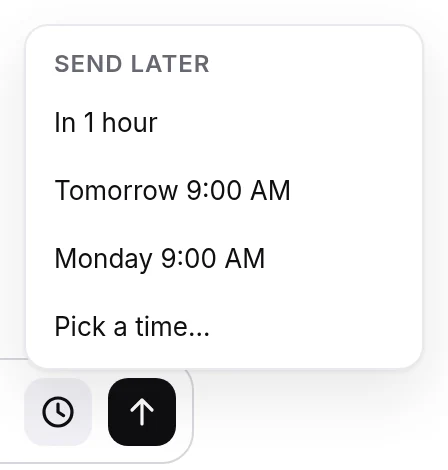
You can also write a message to an agent now and have it go later. Press the clock button Send later next to send, then pick In 1 hour, Tomorrow 9:00 AM, Monday 9:00 AM or Pick a time… (up to 29 days ahead). It goes out as you, even with the console closed. Above the message box, "Sends tomorrow 9:00 AM" shows with Edit and Cancel; if it fails, "Didn't send" shows with Retry and Delete. Send later takes text only. The phone app has it too, by the send button.

Next steps
Didn’t answer your question? Email support@ipsion.ai and say what you were trying to do.