Put your app or website online
Your agents can build you a website, an app or a dashboard. This page says where it runs and how to put it online to stay.
Where it runs
Your agents work on your own Ipsion server in the cloud. Anything they build and start runs there until it is stopped. Your agent can tell you which parts run on your server and which run somewhere else: ask "where does my site run?".
Publish it at your own Ipsion address
Your agent can put a page, a website or a full web app it built on the internet for you, at your own address on ipsion.page. Ask in one message, for example: "Publish this price list and give me the link."


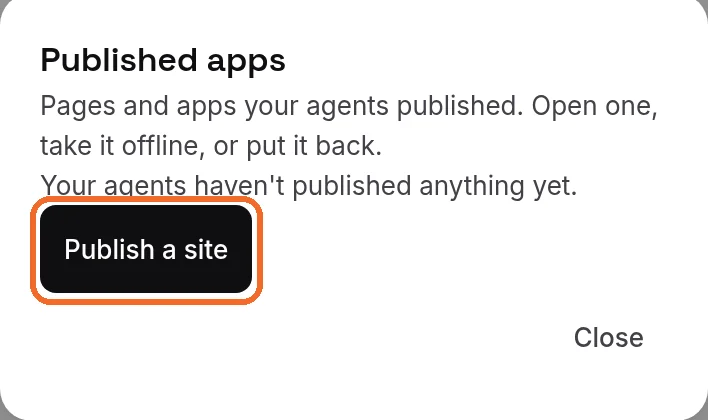
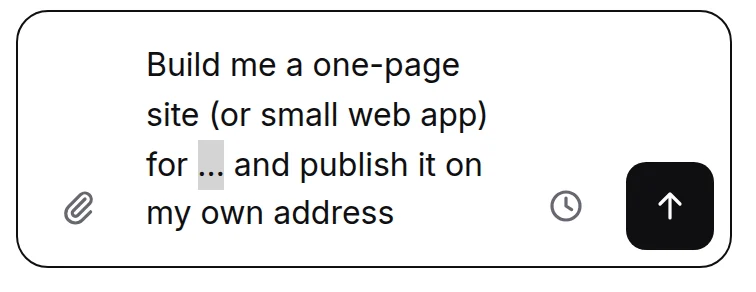
Not sure what to ask? Press Publish a site. It is in Published apps: under "Your agents haven't published anything yet", or above the list. It is also at the end of an empty room's Try asking row. Your agent's room opens with the ask already in the message box and its "…" selected, so you type what the site is for. Nothing is sent until you press Send. The button opens your lead agent's room (#main); the chip puts the ask in the room it is in.

- The address: an app gets
https://<your account id>.ipsion.page/<project>/<name>/, for examplehttps://<your account id>.ipsion.page/workspace/price-list/. A whole website can live athttps://<your account id>.ipsion.page/itself. Your agent gives you the exact link, and the page opens in Live next to the chat. - Just the address, with nothing after it: if you published a website there, it shows your website. If not, it shows Published here, a list with a link to each app that is online; apps only you can open are left off. If nothing is published yet, it says the address is ready.
- Addresses from before 27 October 2026 ended in
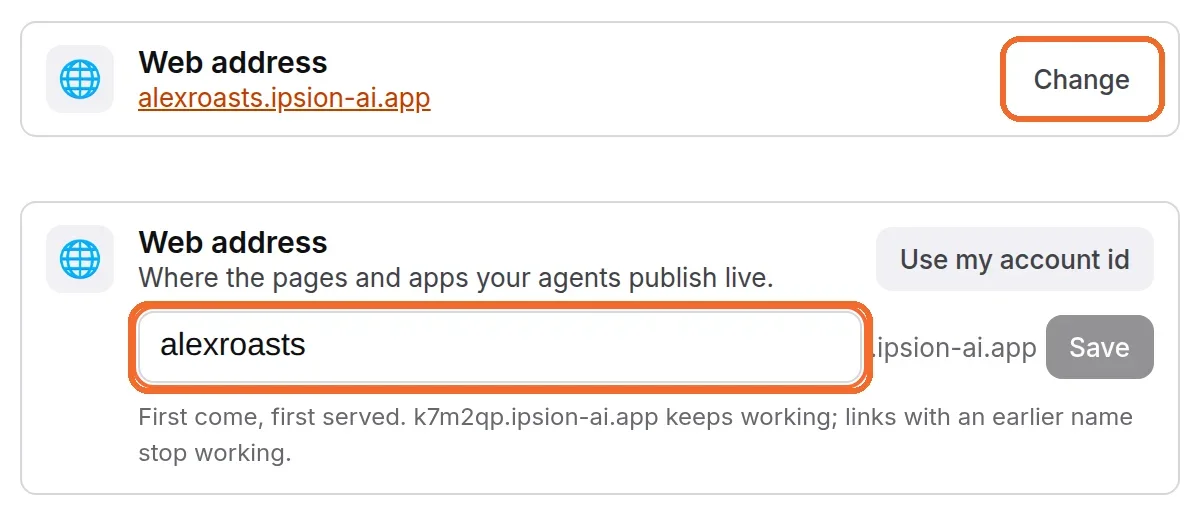
ipsion-ai.app. They still open the same pages, so links you already shared keep working; your agent now gives you theipsion.pageaddress. - A name of your own: in Connected accounts, the Web address line lets you pick a name to use instead of your account id. Names are first come, first served. The account-id address keeps working; links with a name you used before stop working.
- Who can open it: anyone who has the link. The page itself is public, so keep personal details, passwords and keys out of the page and its code. An app can still ask its users to sign in before it shows them their own data (see below).
- How long it stays up: until you take it down. Publishing again under the same name replaces the page at the same address. It is served from your own Ipsion server, so it is online while your server is.
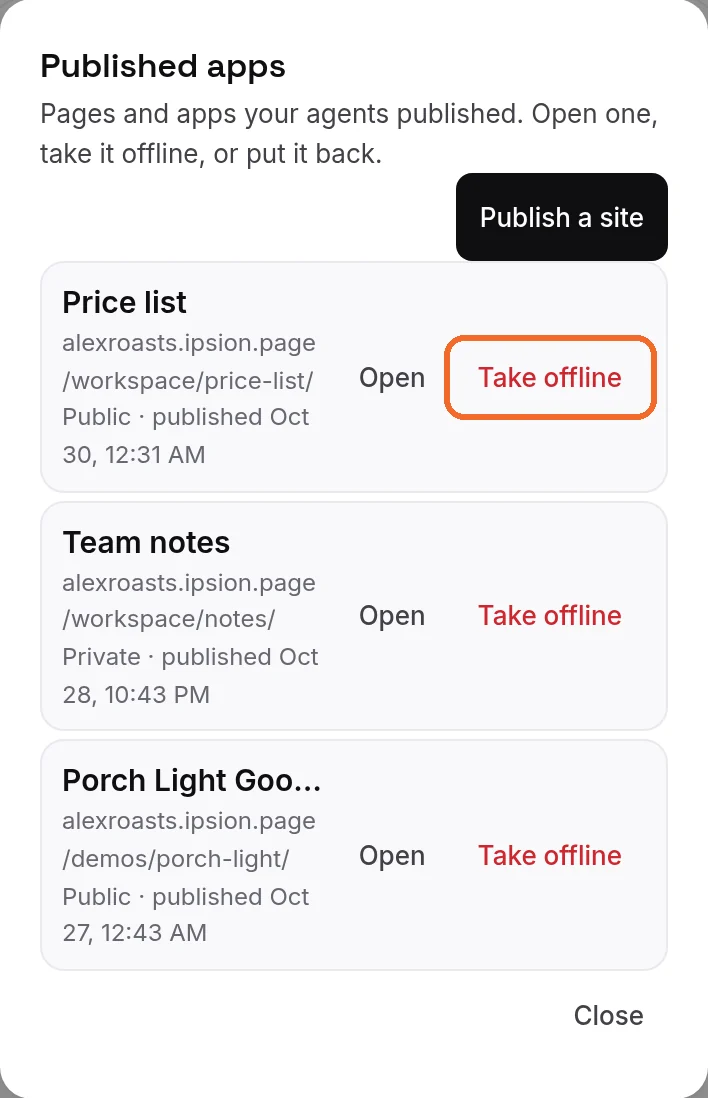
- Take it down: press Account (person icon), then Published apps, then Take offline next to it. No agent needed, and Put back brings it back as it was (steps below). The address then shows a not-found page. If the app had a server program, it stops; its saved data stays on your server.
Manage your published apps
The console lists every page and app your agents published, so you can open one, take it offline or put it back yourself, without asking an agent.
- Press Account (the person icon next to your name at the bottom of the list), then Published apps under Your AI.
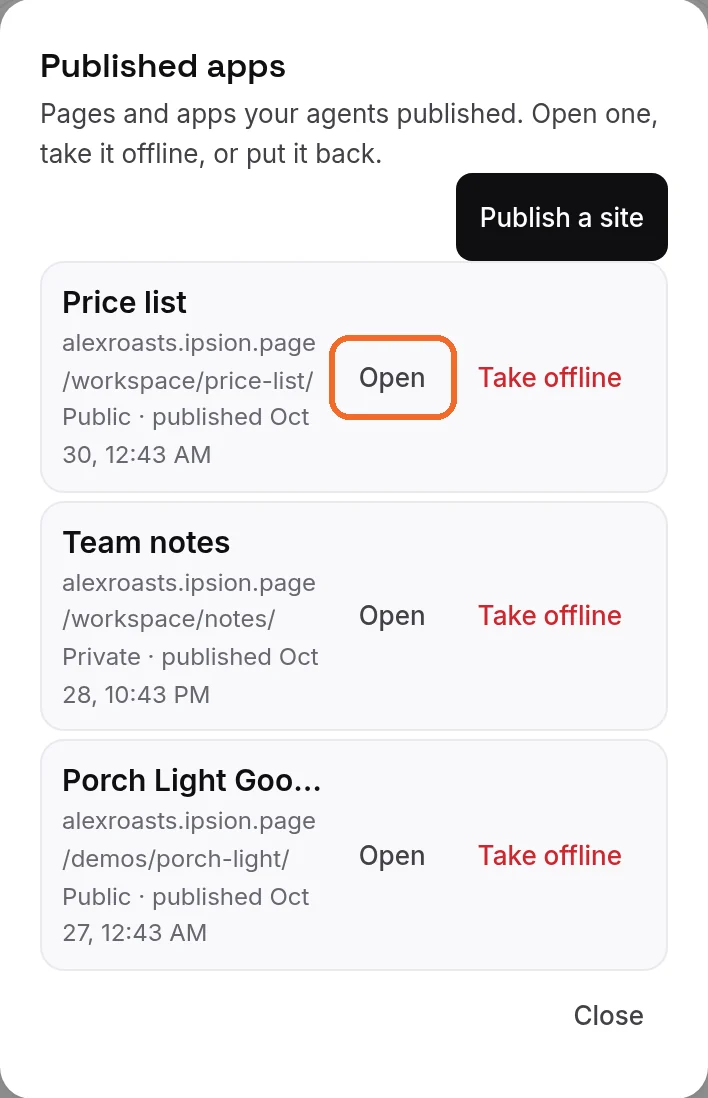
- Each row shows the app's name, its address, Public (anyone with the link can open it) or Private (an app your agent published for you alone), and when it was published. The newest is at the top. Open opens it in a new tab.
- Take offline: press it, then confirm. The address shows a not-found page until you put it back. Ipsion keeps a copy of the app on your server.
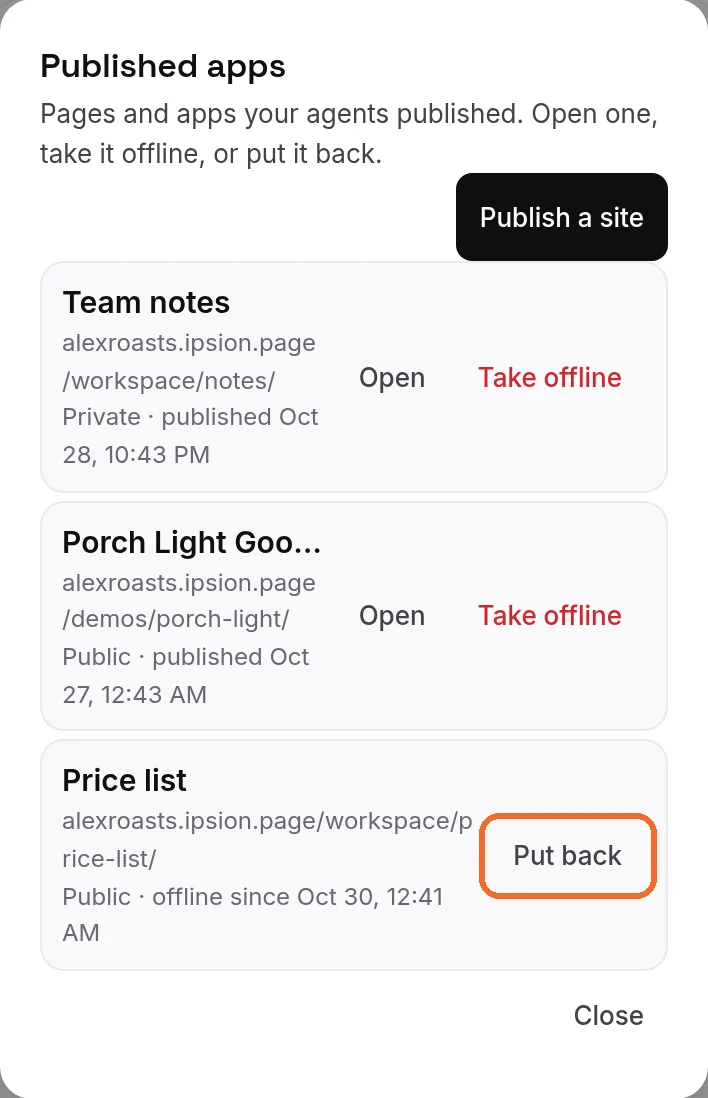
- Put back: an app you took offline stays in the list, marked offline since and the date. Press Put back and it is live again at the same address, as it was.

- Saved data: a full web app's saved data stays on your server while the app is offline, and it is there again when you put the app back.
- Not in the list: an app your agent took down for you has no copy, so it is not listed. Ask your agent to publish it again.
- On a phone: the phone app has the same list, with Publish a site above it: open the Profile tab, then Published apps… under Your AI. If it isn't there, your phone app is older than the list: update it, or open the console in your phone's browser. The desktop app has it too, because it shows the same console.
- No Published apps in the menu? Your server doesn't have it yet. Ask your agent to take the app down instead, for example "Take down the price list".
A page, or a full web app
- A page: HTML, CSS, JavaScript and images that run in the visitor's browser, for example a price list, a calculator or a game. A page can keep a visitor's choices in that visitor's own browser.
- A full web app: your agent can also give an app its own server program, which runs on your Ipsion server. That is what an app needs to save what people type, keep a list or a database, or give each person their own account. Ask in one message, for example: "Build a notes app where each person signs in and keeps their own notes, and publish it."
For a full web app:
- Saved data: the app keeps its data on your Ipsion server, in its own folder (usually a SQLite database). Publishing the app again keeps the data.
- Sign-in for its users: people who use the app can create an account with an email and a password and sign in. Ipsion checks who is signed in before a request reaches the app, so no key is needed for this, and your agent keeps each person's data apart.
- Always on: the server program starts again by itself if it stops or your server restarts.
- Kept apart: the server program sees only its own app folder, not your files or your agents' workspace. If it needs a key for another service, your agent asks you to add it in Connected accounts instead of putting it in the code.
A link ending in trycloudflare.com
To let you open something running on your server, an agent may give you a link like https://<words>.trycloudflare.com. That is a temporary link from Cloudflare, not part of Ipsion:
- The address changes each time the app restarts, so an older link stops working.
- Cloudflare offers it for testing, with no promise that it stays up.
- Anyone who has the link can open the page. Don't share it, and don't use one for a page that shows your personal details, unless your agent has added a password to it.
A domain you already own
Your published pages and apps can also answer at a domain name of your own, like yourshop.com or shop.yourshop.com.
- In Connected accounts, press Use my own domain on the Your own domain line, under Web address.
- Type the domain. Ipsion shows the one DNS record to add: an A record with your server's address.
- Add that record where you bought the domain (your registrar), then press Check. A new record can take a few minutes to show.
- Once the check passes, press Add. Within a few minutes the domain answers over HTTPS with the same pages as your ipsion.page address.


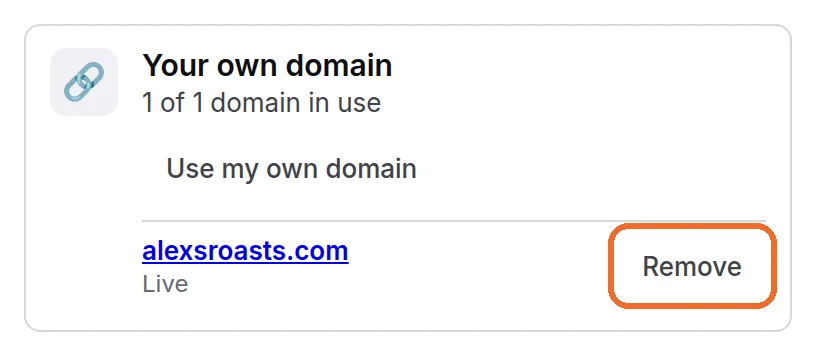
Your plan sets how many domains you can use (see Your free month, plans and invites). One domain counts once, however many names under it you add: yourshop.com, www.yourshop.com and shop.yourshop.com use one. To stop using one, press Remove next to it. Ipsion never changes your DNS; remove the record at your registrar if you no longer want it.
A big app: a hosting service
Your Ipsion server is enough for most pages and apps. Use a hosting service in your own account, for example Vercel, Netlify or GitHub Pages, when the app is big: many users, heavy traffic, or more than your Ipsion server's memory. That service's own plans and limits apply.
- Connect GitHub so your agent can keep the code in your repository. See Give your agents access.
- Ask for it in one message, for example: "Put this site on Vercel from my GitHub repo, and tell me the address."
- If the hosting service wants you to sign in, your agent opens it in its browser. Press Take over, sign in yourself, then press Hand back or I'm signed in.
- Your agent asks before it uses your GitHub key, and you can see every use.
From then on, a change your agent pushes to the repository goes live when the hosting service rebuilds it.
Keep private things off the internet
Before anything goes online, ask your agent what the page shows and who can open it. A page with your résumé, contacts or other personal details should stay private: ask your agent to keep it off the internet, or to put a password on it. Keep that data out of the code it pushes, too: you can ask your agent to keep it in a folder the repository doesn't include, and to check before each push. See Privacy and your data.
Still not sure where something runs? Email support@ipsion.ai. See Contact us.
Didn’t answer your question? Email support@ipsion.ai and say what you were trying to do.