Google says it hasn't verified this app
When you connect Google or YouTube, Google may show a page that says Google hasn't verified this app.
What the screen is
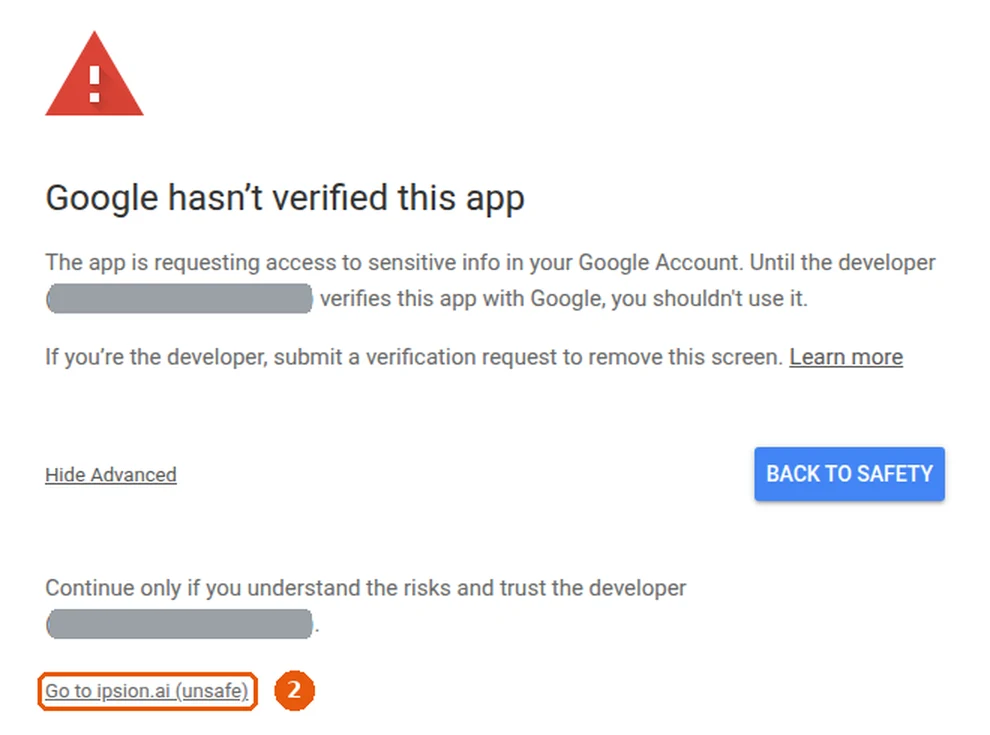
Google shows this warning when an app asks to read private data, such as your calendar, and Google has not finished reviewing that app. It is Google's own page, not Ipsion's.
Why you see it today
Ipsion's Google review is not finished yet. Until it is, everyone who connects Google or YouTube sees this screen. We can't give you a date: Google sets the pace.
The warning is real. It means Google has not checked how Ipsion uses this access yet. It does not mean Google found a problem with Ipsion.
Why it says "ipsion.ai"
Until Google has checked the app's name, its screens call the app by its web address, ipsion.ai, instead of Ipsion AI. The warning also names the developer by an email address, which we hide in the pictures below.
What Ipsion asks for, and what it does with it
- Google: read your Calendar. Your agent reads it only when you ask, sends what it reads to the AI model to answer you, and never uses it to train AI. It can't add or change events, and it does not read your Gmail.
- YouTube (connected on its own): see your channel and its videos, and upload videos to your channel.
Google also asks for your email address, so Connected accounts can show which Google account you connected. More in the Privacy Policy.
To go on
- On the warning, press Advanced.
- Press Go to ipsion.ai (unsafe).
- Google asks you to sign in to ipsion.ai with your Google address, then lists what Ipsion asks for and lets you tick it. Press Continue on each.
- You come back to the console, and Google shows as connected in Connected accounts.

To skip it
Press Back to safety, or close the window. Nothing is connected. Everything else in Ipsion works without Google: your agents just can't read your Calendar. You can connect later from Connected accounts.
If Google won't let you go on at all, write to support@ipsion.ai.
To remove access later
- In the console: open Connected accounts and press Disconnect next to Google or YouTube.
- In your Google Account: go to myaccount.google.com/permissions, choose ipsion.ai (Ipsion AI once Google has checked the name; Soul AI if you connected before October 27, 2026), and remove its access.
Didn’t answer your question? Email support@ipsion.ai and say what you were trying to do.