The conversation and the message box
The middle of the console is the conversation with the agent you picked. The message box below it is where you ask for things.
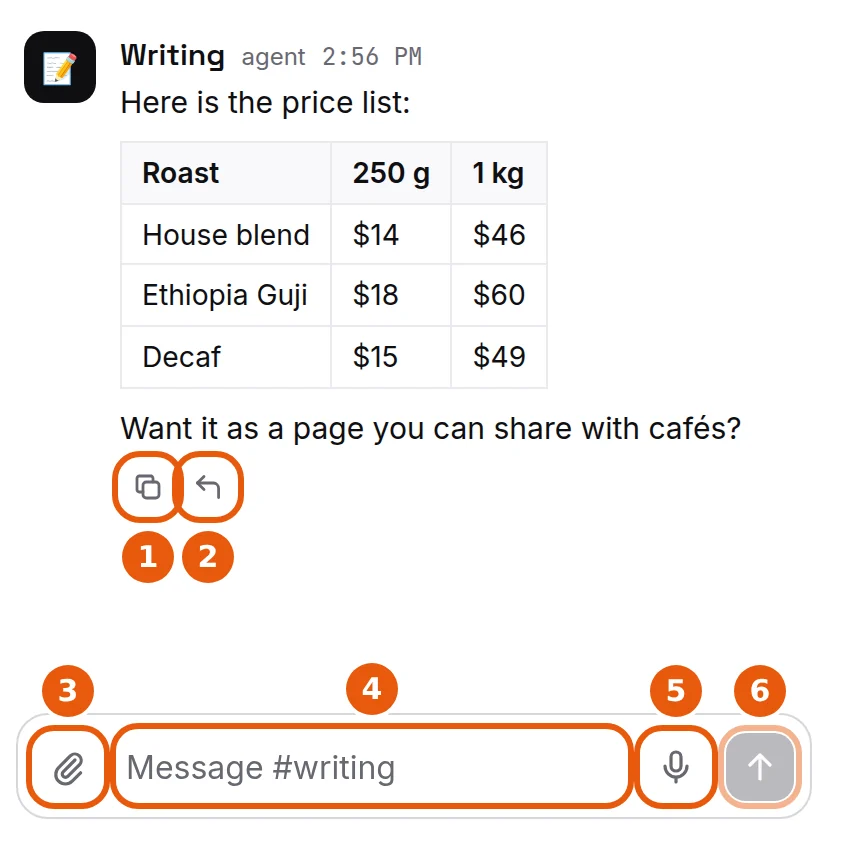
Replies show up with the newest at the bottom. Scroll up to see earlier ones.
Under a message (move your mouse over it to see these; on a phone or tablet they are always there):
- Copy: copies the message's text.
- Quote in your reply: puts that message above the box, so your next message answers it.
A long reply, or one with a box of results, also has Open in panel. It opens the reply in Live, the panel on the right, so you see it bigger.
The message box:
- Paperclip: add pictures or files. You can also drop or paste them into the box. See Send files to your agent.
- The box: type what you want done. Press Enter to send.
- Mic: hold it, talk, and let go to send a voice message. Or click it once to start and again to send. Your words are turned into text for your agent. Once you start typing, the clock button Send later takes the mic's place: it sends what you typed at a time you pick. See Send it later.
- Send (arrow): sends what you typed.
When your agent makes files or pages in a reply, a button under the reply counts them, like 3 made for three. Click it to see them all in one place.
Cards with buttons
Sometimes a reply ends in a card with buttons, so you can pick what happens next with one press instead of typing. When the agent explains an option, that line sits right above its button, one option per row.
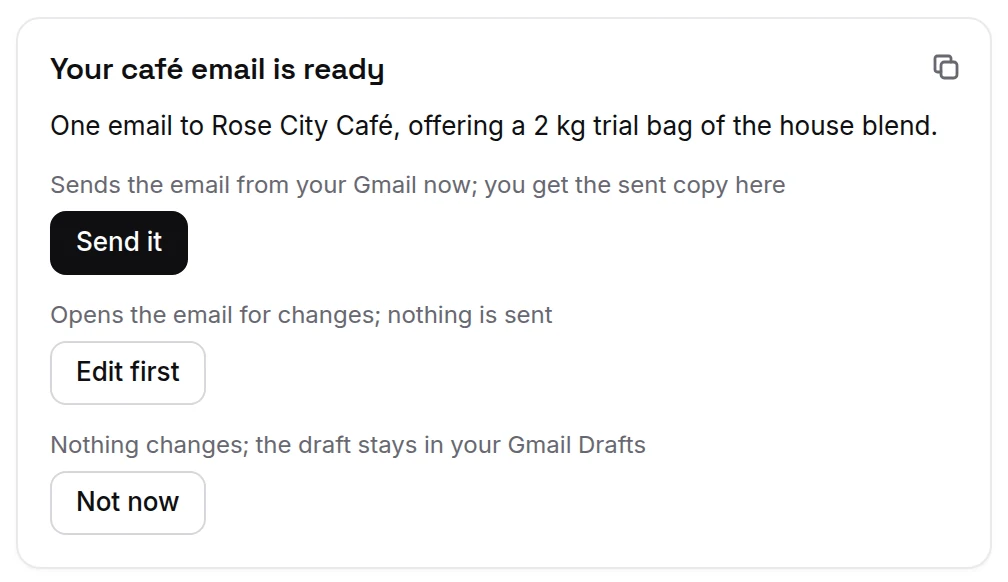
- Press one, and it turns into what you picked and the time, like Send it · 9:41 AM.
- The card's other choices grey out, so you can't pick two by mistake. This stays after a reload. If the press doesn't go through, the other choices come back.
- Some cards say their buttons can each be pressed, like "Post to LinkedIn" and "Post to X". Those don't grey each other out.
- A button that approves, rejects or deletes something asks first: the button changes to Tap again to send, and a second press sends it.
- A button whose label ends in … doesn't send anything. It starts your reply in the message box, and you finish it and press Send.
A draft card shows what the agent wrote before anything goes out: for each post or email, who it goes to (To:), the subject, and the text. Under each one:
- Post to (for example Post to LinkedIn) sends it. If that account isn't connected yet, the button says Connect LinkedIn to post instead. An email is sent, not posted: its button says Send email, or Connect email to send when no email account is connected, and then Copy comes first.
- Copy copies it. For an email, the copy starts with its subject line, so you can paste it anywhere.
- Edit lets you change the text first. Regenerate asks for a new version.
On the phone, a draft card shows the same To, subject and text, each with Copy.
Pick up where you left off
When you come back, a card above the message box may say what your agent finished last (Done) and the one next step (Next). Some cards carry their own buttons instead, each with a line under it saying what you get.
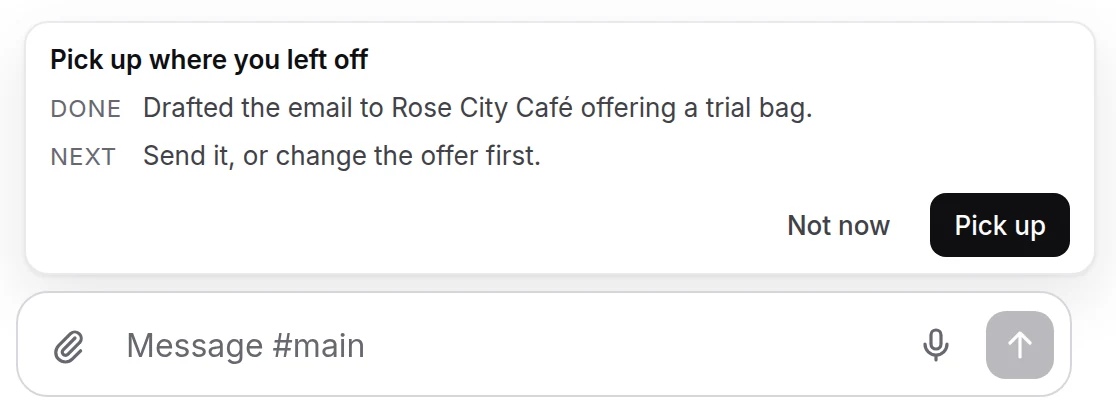
- Pick up (or one of the card's own buttons) opens that conversation with the next ask already in the box. Nothing is sent until you press Send, so you can change the words first.
- Not now hides the card until you write again. The card also goes away as soon as you send a message.
- Once a week, a card in the same place lists what your agents finished in the last 7 days. Got it closes it for that week.
Sending while your agent is working, and offline
You do not have to wait for a reply before you send again. Type the next message and press Send: it waits beside the running task and goes next. Where your server cannot queue, Send greys out until the reply lands.
If the connection drops while you send — or you record a voice message with no connection — the message is kept and goes by itself once the connection is back. You do not need to send it again.
On a phone, tap wherever this page says click.
Didn’t answer your question? Email support@ipsion.ai and say what you were trying to do.