Your account buttons
Your name and email are at the bottom of the list on the left. The four buttons next to them are for your account.

- Your name and email: the account you signed in with.
- Download the app (down-arrow icon): get Ipsion for Mac, Windows, iPhone or Android. On a computer the app shows this same page in its own window, so you don't need a browser. See The desktop app and The phone app.
- Connected accounts (chain-link icon): see and choose which of your accounts your agents may use, like your email or calendar. Nothing is connected until you choose Connect.
- Account (person icon): your plan and what you used this month, inviting friends, bringing in what other AIs know about you, your settings and password, the privacy policy and terms, and the option to delete your account. Some rows show only when your plan has them.
- Sign out (door icon): signs you out on this device. Your agents and your work stay as they are.
On a phone, these account buttons are in the Profile tab at the bottom of the app, along with Help center.
Text size
To make the words in the console bigger, open Account and pick Normal, Large or Larger under Text size. The text changes at once, everywhere in the console. Buttons, pictures and spacing stay the same size. Normal is the default.
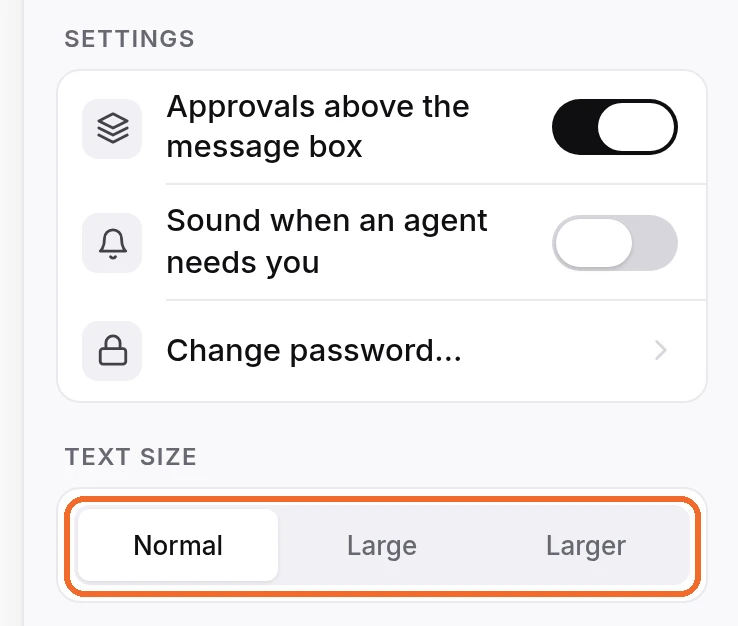
Your choice is kept on this device only, so set it again on each computer or browser you use. Other Ipsion tabs open on the same device change with it.
In the phone app, open the Profile tab. Text size is under Settings, with the same three sizes and one more choice: Match my phone uses the text size set in your phone's settings.
Didn’t answer your question? Email support@ipsion.ai and say what you were trying to do.