Your list of agents
The list on the left holds Home and all your agents. The heading over your agents says Channels: each channel is one agent. Each agent has its own row, and its threads sit under it. A thread is a separate conversation with that agent about one task.

- Find a channel or thread: type part of a name to find an agent or a thread.
- Home: your day at a glance. See Your Home dashboard.
- + next to Channels: make a new group to sort your agents into. If your plan lets you add agents, it also offers a new agent.
- A group's name: click it to hide the agents in that group, and click again to show them. While a group is hidden, a number next to its name shows how many agents are in it. You can also drag an agent to another group.
- ⋯ next to a group: rename the group, change its order, or delete it.
- An agent's row: click it to talk to that agent.
- + on an agent's row: start a new thread with that agent. Use one thread per task, so tasks never mix.
- ⋯ on an agent's row: start a thread, rename it, add it to Top Priority, or move it to a group. Top Priority is a short list at the top of your list for the agents and threads you use most, and the same ⋯ takes it off again. On a wide screen, Open side by side shows that agent next to the chat you are in. A thread has its own ⋯ to add it to Top Priority, rename it or archive it (put it away: it leaves the main list but is not deleted).
- Show all: to keep the list short, each agent shows only threads with new replies and the one you are in. Show all lists every thread.
The + and ⋯ buttons appear when you move your mouse over a row. On a touch screen they are always shown.
Top Priority from inside a room
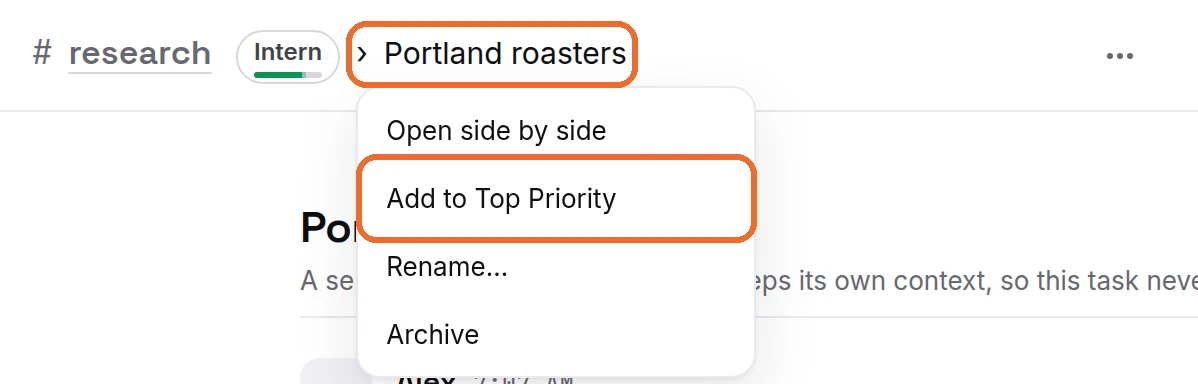
You do not have to go back to the list to pin a room. Inside a chat, open the menu at the top and press Add to Top Priority:
- In a channel's main room, press the ⋯ beside the room's name at the top.
- In a thread, press the thread's name at the top (on the web, the ⋯ beside it opens the same menu). On the phone, tapping the thread name opens its sheet, and the first row adds it to Top Priority.
- The same menu also renames or archives the thread. Press it again from the same place to take the room off Top Priority.
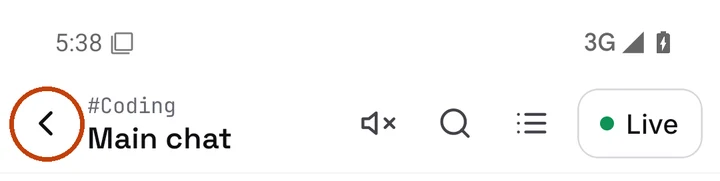
On a phone: in the Ipsion app, this list is the first screen you see (Workspace). Scroll down past the summary to Channels. In a chat, tap ‹ at the top left to go back to the list. The app has no menu button for the list. The button with three lines at the top right of a chat shows only that agent's threads. In a phone's web browser, tap ☰ at the top left to open the list.


At the bottom of the list are your name and your account buttons. See Your account buttons.
Didn’t answer your question? Email support@ipsion.ai and say what you were trying to do.