Help · Getting started
Tutorial: install the Mac or Windows app and let your agent use your computer
This tutorial takes about ten minutes. At the end, your agent can see your own Mac or Windows PC while you share its screen, and click and type on it once you allow that. You stay in charge the whole time. It is new: tell us at support@ipsion.ai if a step doesn't match what you see.
Part 1: Install the app
- Open the web console at ipsion.ai/trial/console on the computer and sign in.
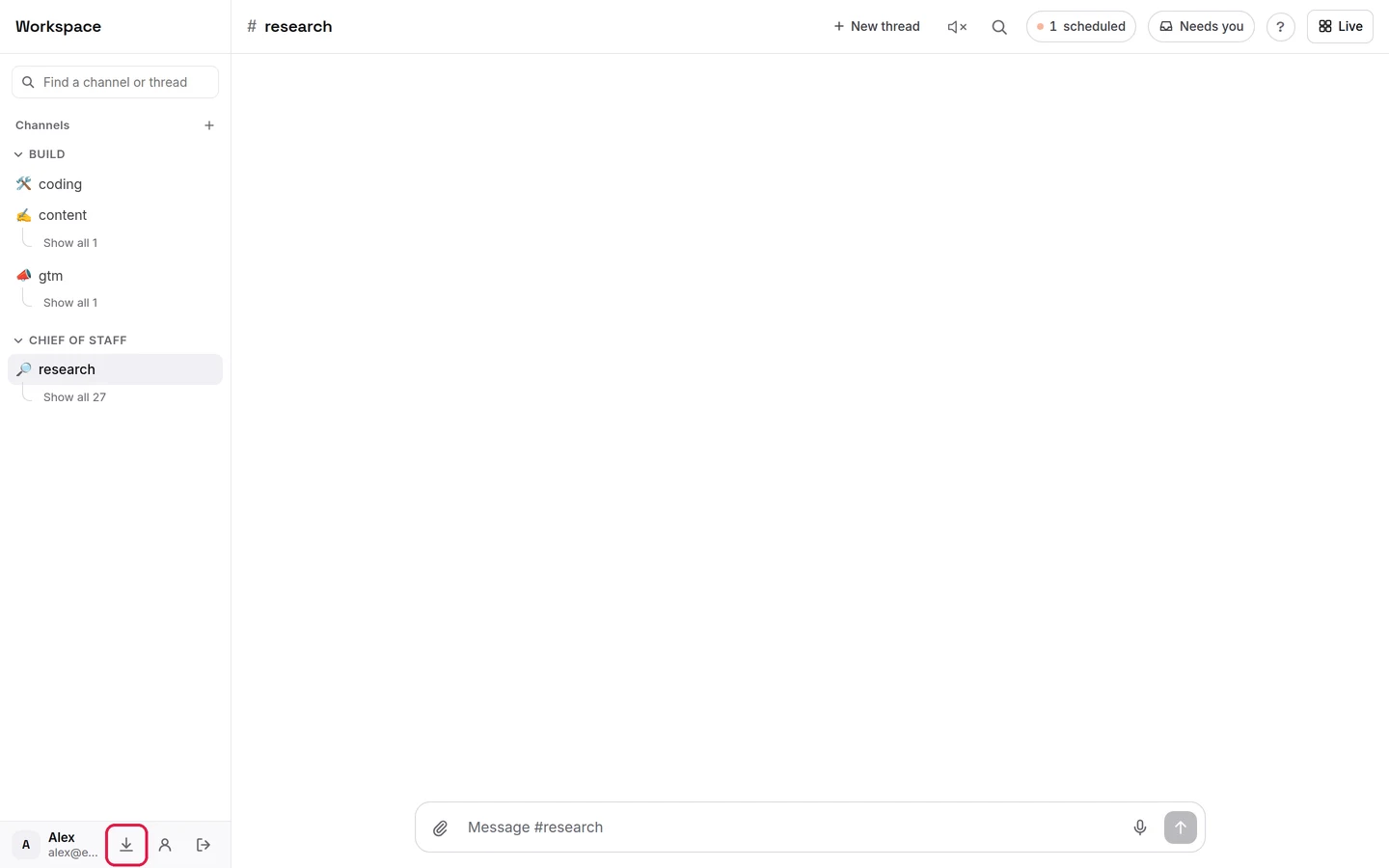
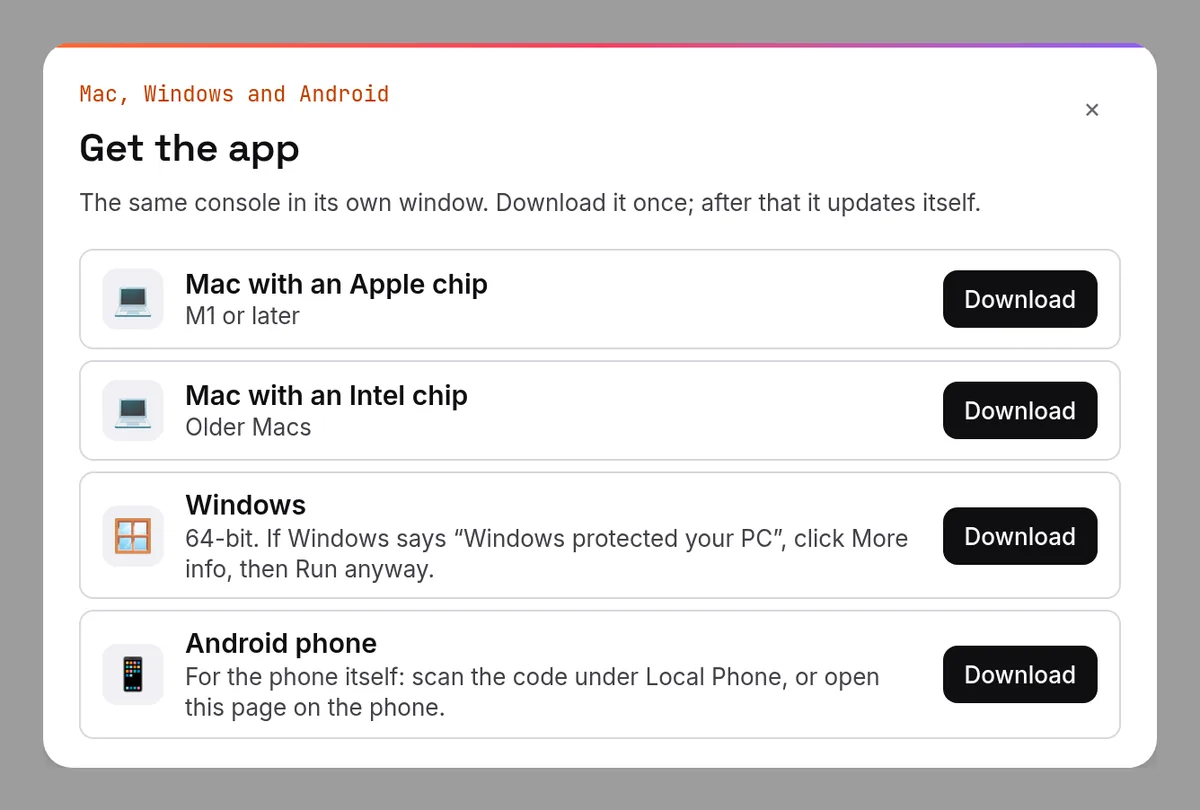
- Click the download button (the arrow at the bottom of the sidebar, next to your name) and pick your computer: Mac with an Apple chip (M1 or later), Mac with an Intel chip, or Windows (64-bit).
- Mac: open the downloaded file and drag Ipsion AI onto Applications. Open it from Applications. The first time, your Mac asks whether to open an app downloaded from the internet: click Open.
- Windows: run the downloaded file. The app is not signed yet, so Windows may say "Windows protected your PC": click More info, then Run anyway. If Smart App Control blocks it with no Run anyway button, use the web console until the signed Windows app is out.
- Sign in with the same account you use on the web. The app is the same console in its own window. Closing the window keeps it running in the menu bar (Mac) or the tray by the clock (Windows).
You install it once. After that the app updates itself.
Part 2: Connect your computer
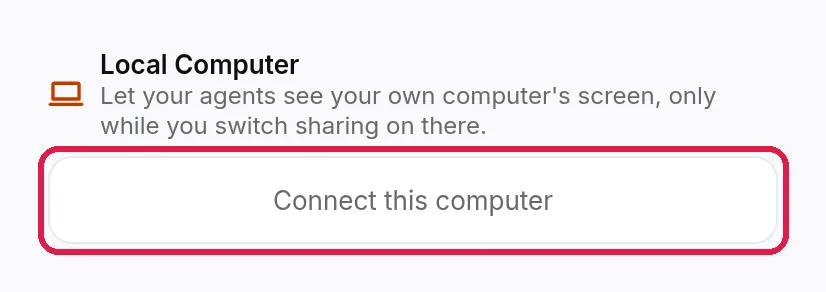
- In the app, open Live, then under Local Computer press Connect this computer.
- The app asks "Connect this computer to (your server)?". Press Connect this computer.
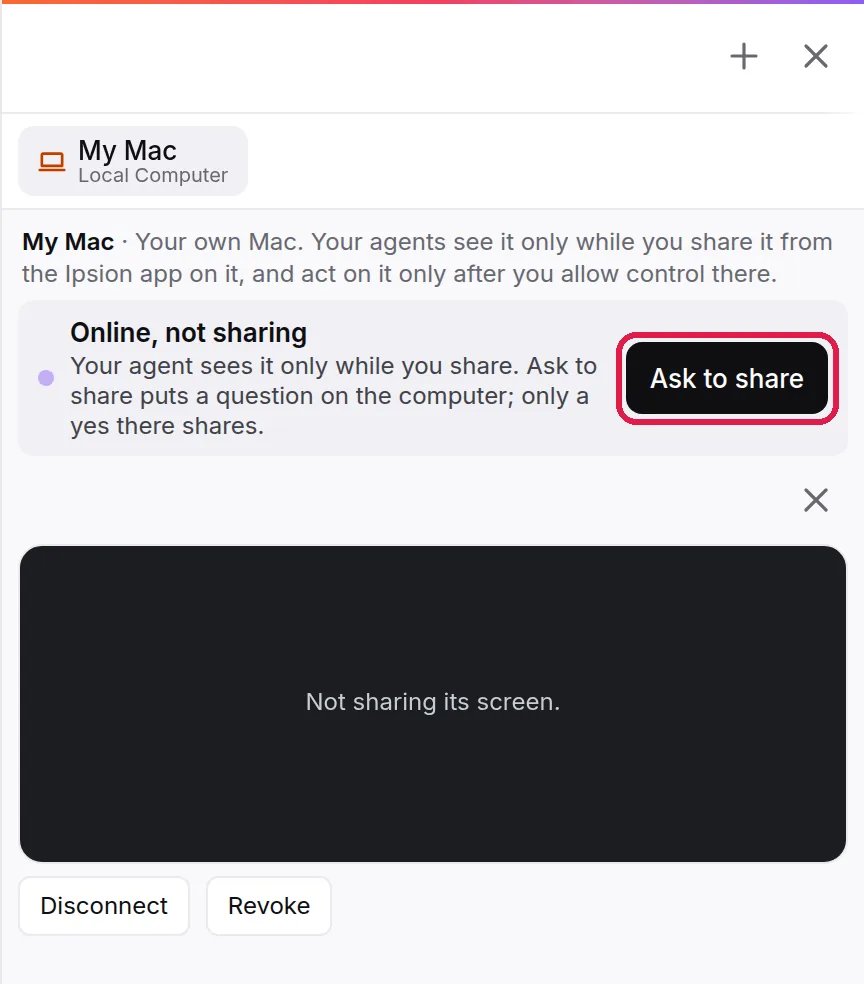
- Your computer now shows under Local Computer as "Online, not sharing". Connected does not mean shared: your agent sees nothing yet.
Once one computer is connected, the button for the next one is Connect another computer, at the bottom of the Live panel.
Connecting a different computer from the web console instead? Press Connect your computer there to get a one-time code, then on that computer click the Ipsion icon, choose Your computer…, type the code and press Connect. See Can my agents use my own computer?
Part 3: Share the screen
Your agent sees your screen only while it is shared. You can share it two ways:
- From the computer: click the Ipsion icon, choose Your computer…, and switch Share this screen on.
- When asked: in the console, open your computer's tab under Live and press Ask to share. The button changes to Asked… and a question appears on the computer; only Share screen there shares. Not now is the default answer.
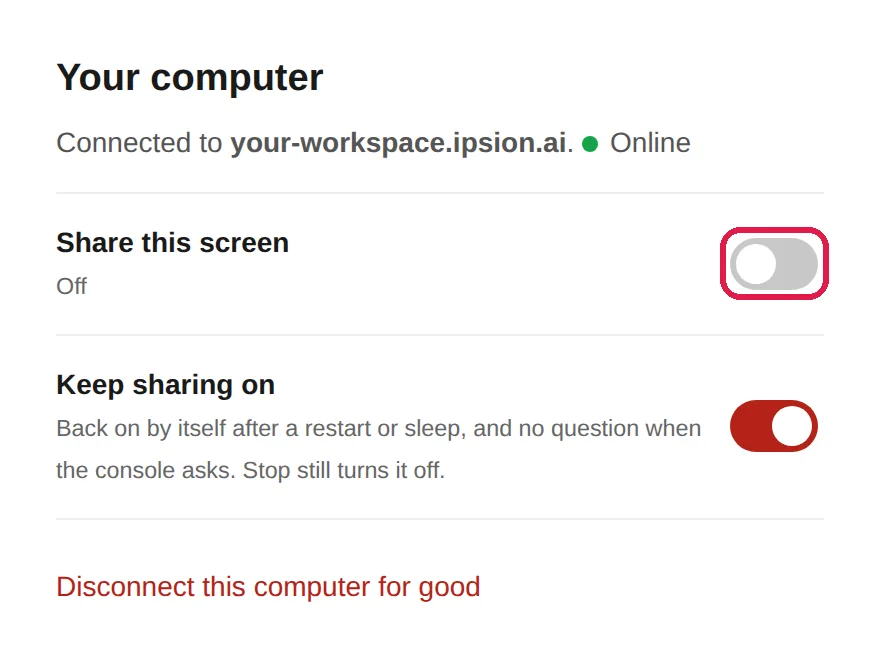
A red bar stays on screen the whole time the screen is shared.
Keep sharing on (ticked unless you untick it) brings sharing back by itself, with the red bar, after a restart, an update, sleep or a lost connection, and answers later asks without a question. The question on the computer has the same box, ticked. Untick it in Your computer if you want to be asked every time. A locked screen pauses sharing. Stop keeps it off until you share again.
On a Mac, the first time: open System Settings, then Privacy & Security, and allow Ipsion AI under Screen & System Audio Recording. If it isn't allowed, the console says "Screen recording is off for the Ipsion app".
Part 4: Let your agent click and type
- Seeing is not acting. To let your agent use the computer, press Allow control on the red bar. The console has no such button: only the computer can give control.

- On a Mac, the first time: allow Ipsion AI under System Settings, Privacy & Security, Accessibility (on the newest macOS the list is called Device Control and Data Access). The app tells you if this is missing.
- Ask your agent for the job in chat, as usual: "On my computer, open my sales spreadsheet and add this week's numbers". You can watch it work in your computer's tab under Live.
If your agent does nothing on the computer for 10 minutes, control turns off by itself and it goes back to seeing only. Press Allow control again to give it back.
Part 5: Take over, or stop
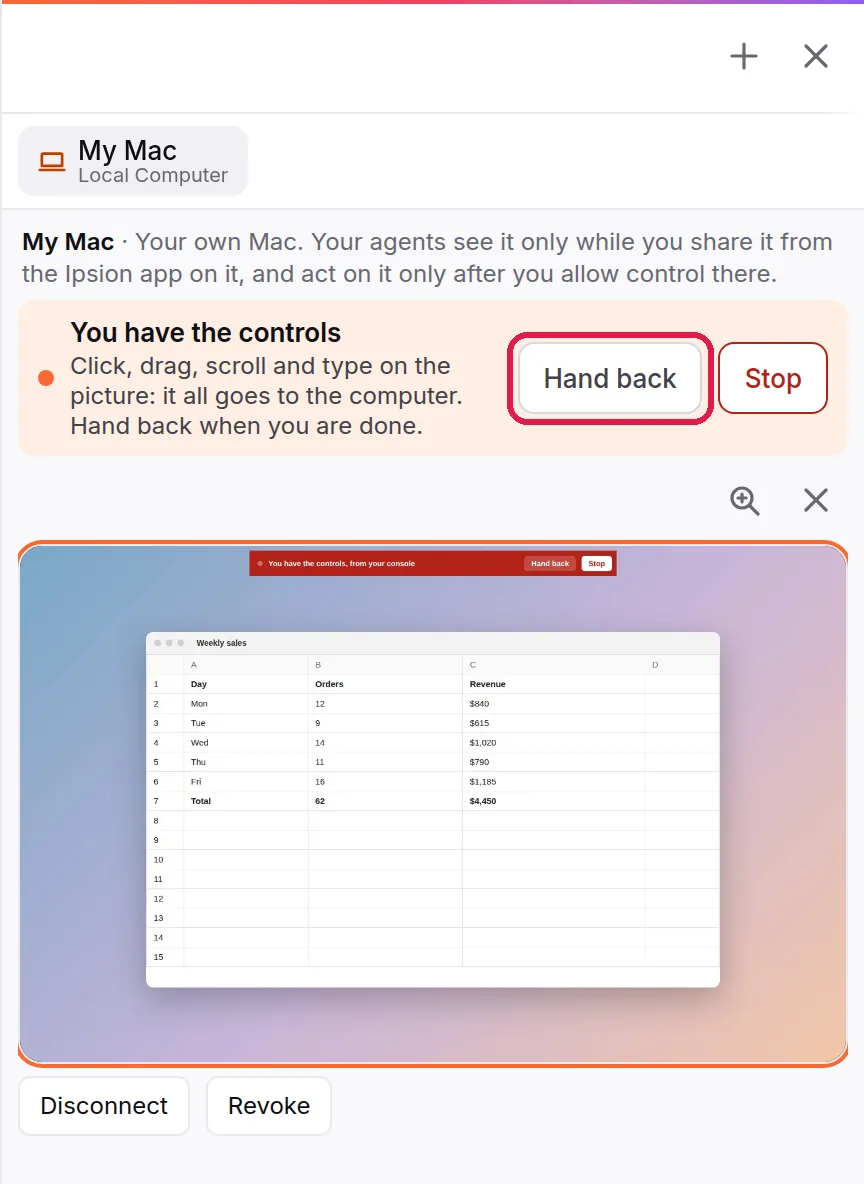
- Take over stops your agent at once. In your computer's tab in the console, you can then click, drag, scroll and type on the picture, and it all goes to the computer. Hand back gives your agent the controls again. The red bar has its own Take over too.
- Pause on the red bar stops it acting but keeps the screen shared; Resume gives control back.
- To stop sharing: press Cmd+Option+Shift+S (the app writes it Cmd + Alt + Shift + S; Windows: Ctrl+Alt+Shift+S), press Stop on the red bar or in the console, or choose Stop sharing this screen from the Ipsion icon's menu.
- To remove the computer for good, press Disconnect this computer for good in the app, or Revoke on its card in the console, then Yes, revoke. To use it again later, connect it with a new code.
Good to know
- Your agent works through what is on the screen, so it can see whatever is open there while you share. Close what you don't want it to see before you share, or stop sharing first.
- The agent acts with your apps and accounts as they are signed in on that computer. Allow control only for jobs you would be happy to approve, and watch the first few.
- Phone too? See Tutorial: install the phone app and let your agent use your Android phone.
Didn’t answer your question? Email support@ipsion.ai and say what you were trying to do.