Help · Using Ipsion
Can my agents use my own computer?
Yes. Your agents normally work on a computer in the cloud that belongs to your workspace. With Local Computer you can also let them see, and with your OK use, your own Mac or Windows PC. It is new: tell us at support@ipsion.ai if a step doesn't match what you see.
The email about this feature called it "Your computer". In the console it is Local Computer; in the Ipsion app's menu it is Your computer….
Want every step from install to stop? See Tutorial: install the Mac or Windows app and let your agent use your computer. Android phones can be connected too: the phone tutorial.
Connect your computer
- Get the Ipsion app for Mac or Windows, version 0.1.8 or newer: in the web console, click the download button at the bottom of the sidebar. See Use Ipsion on the web, your Mac and your phone.
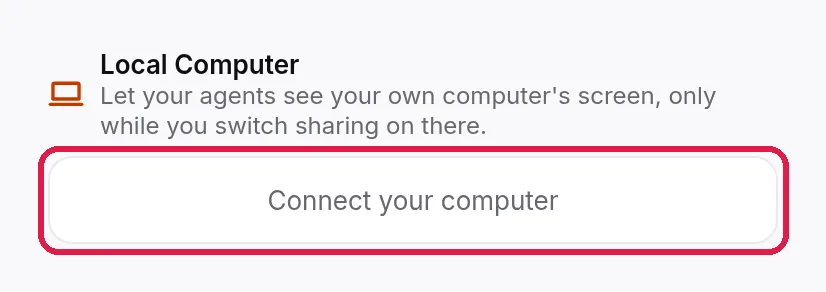
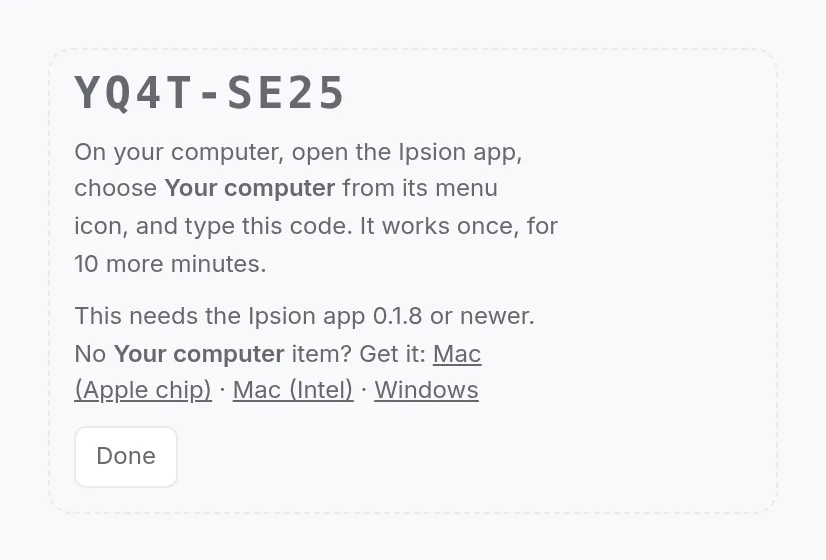
- In the console, open Live, then under Local Computer press Connect your computer. A code appears. It works once, for a few minutes.
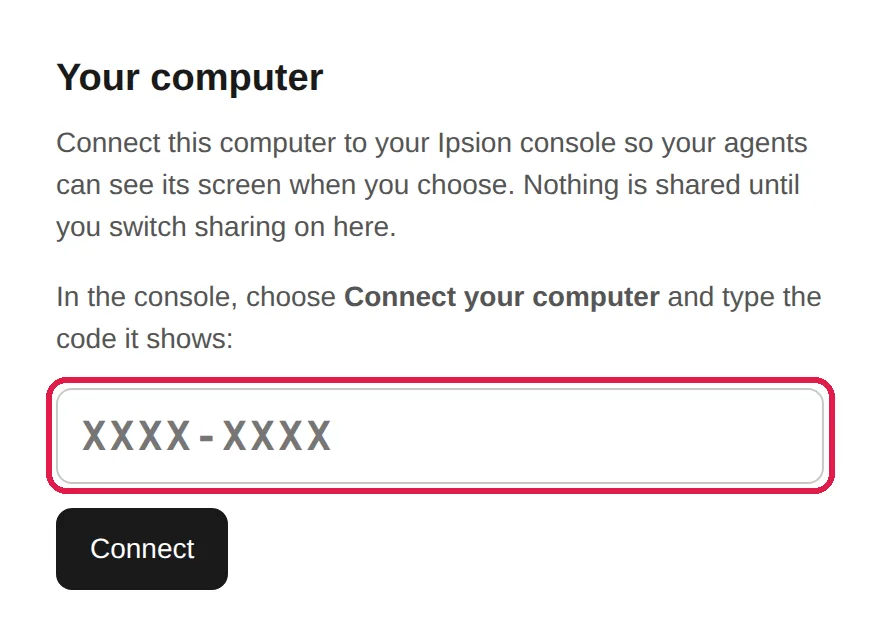
- On your computer, click the Ipsion icon (Mac: the menu bar at the top right; Windows: the tray by the clock, under the ^ arrow if you don't see it), choose Your computer…, type the code and press Connect.
- The app asks "Connect this computer to (your server)?". Press Connect this computer.
If you are using the console inside the Ipsion app, step 2 offers Connect this computer instead, and there is no code to type.
Share the screen, and let your agent act
- Your agents see your screen only while you switch Share this screen on, in the app's Your computer window. A red bar stays on screen the whole time it is on.
- Seeing is not acting. Your agent can click and type only after you press Allow control on the red bar.
- On a Mac, the first time, allow Ipsion AI under System Settings, Privacy & Security: Screen & System Audio Recording to share, and Device Control and Data Access to allow control (older macOS calls it Accessibility).
- In the console, your computer has its own tab under Live. It shows who has the controls. Take over stops your agent at once; Hand back gives the controls back.
Stop any time
Press Cmd+Option+Shift+S (Windows: Ctrl+Alt+Shift+S), use the red bar, or choose Stop sharing this screen from the Ipsion icon's menu. To remove the computer for good, press Disconnect this computer for good in the app.
Other ways to get your files and code to your agents
- Files: attach them to your message with the paperclip, up to 5 per message. Large files upload in pieces, up to 500 MB each; pictures go up to 14 MB in all per message. The console tells you if one is over the limit.
- Code: connect GitHub so your agents can work in your repository. See Give your agents access.
- Watch them work: when an agent uses its browser or its cloud computer, a tab opens on the right of the chat so you can watch, and take over if it needs your sign-in.
Didn’t answer your question? Email support@ipsion.ai and say what you were trying to do.