Quests & Rewards: earn AI credits
Quests & Rewards pay you AI credits for using Ipsion and sharing what you build. Credits pay for extra AI use past your plan's monthly allowance, so your agents keep working after it runs out.
Open Quests & Rewards
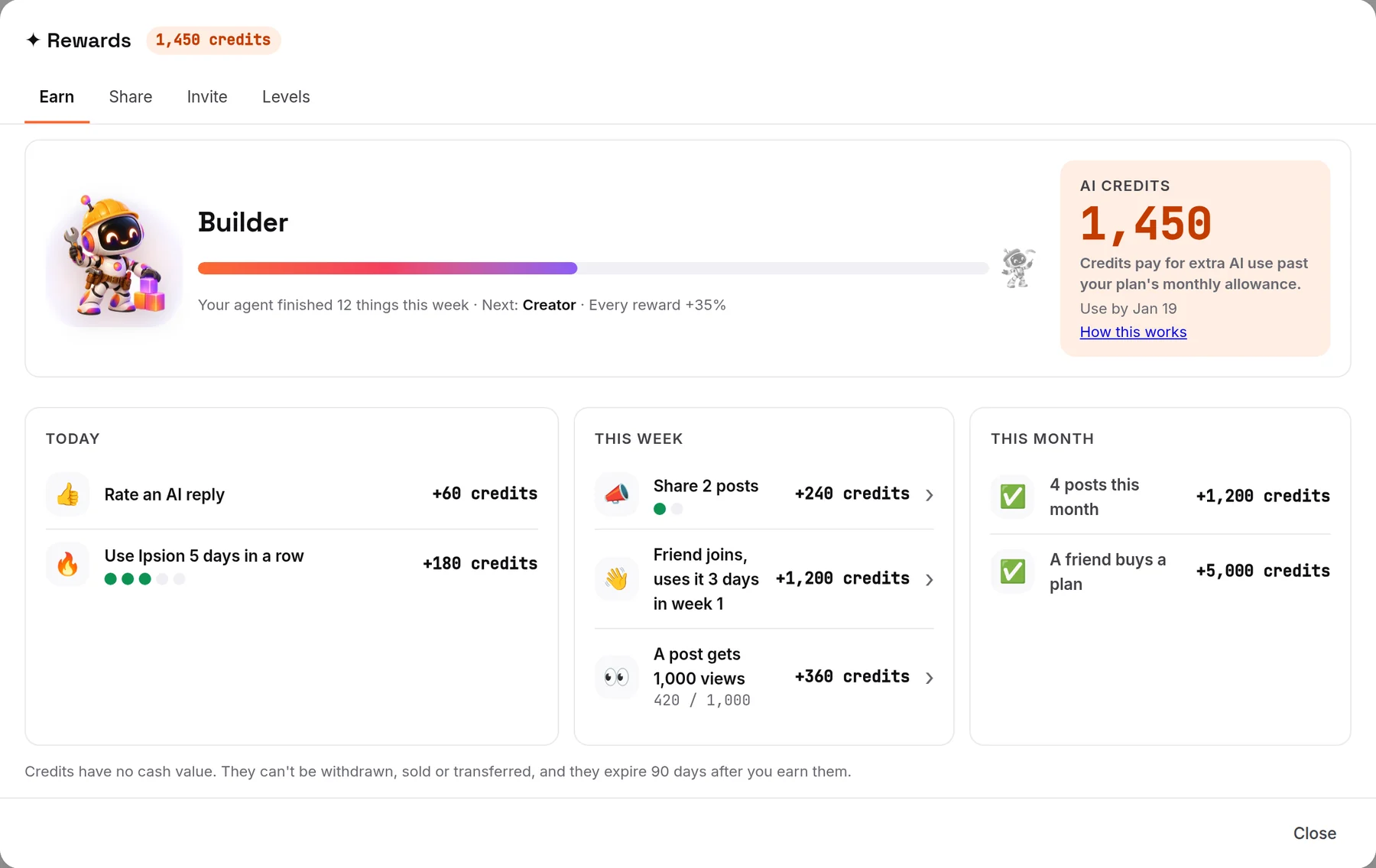
- On the web or in the desktop app, press Account, then Rewards…. The sidebar also has a ✦ Rewards row.
- On the phone, tap Profile, then Rewards.
Until you first open Rewards, a small orange dot marks Account and its Rewards… row (on the phone, Profile and its Rewards row). It goes away once you open Rewards.
It has four tabs: Earn, Share, Invite and Levels.
Levels
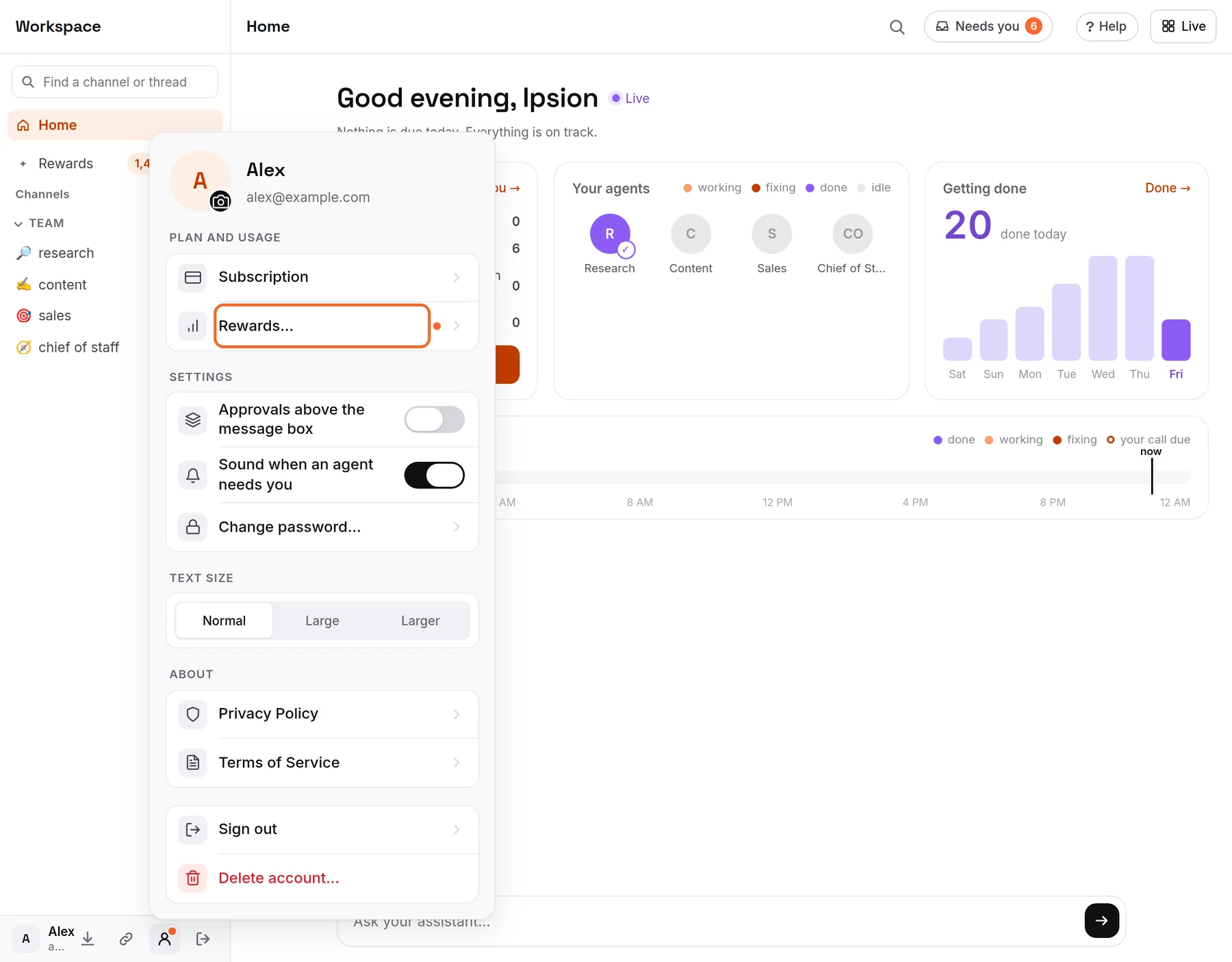
You start as Explorer. Every credit you earn also counts toward your level: Builder at 2,500 credits earned, Creator at 10,000, Ambassador at 30,000 (plus 3 friends who got going) and Legend at 80,000 (plus 10). A higher level pays more for most quests: Builder +20%, Creator +35%, Ambassador +50%, Legend double. Each level also opens more, for example video posts from Builder. Your level never goes down.
These rewards levels are not your agents' levels. How much your agents do on their own (Intern to Autonomous) is explained in How your agents grow.
Daily, weekly and monthly quests
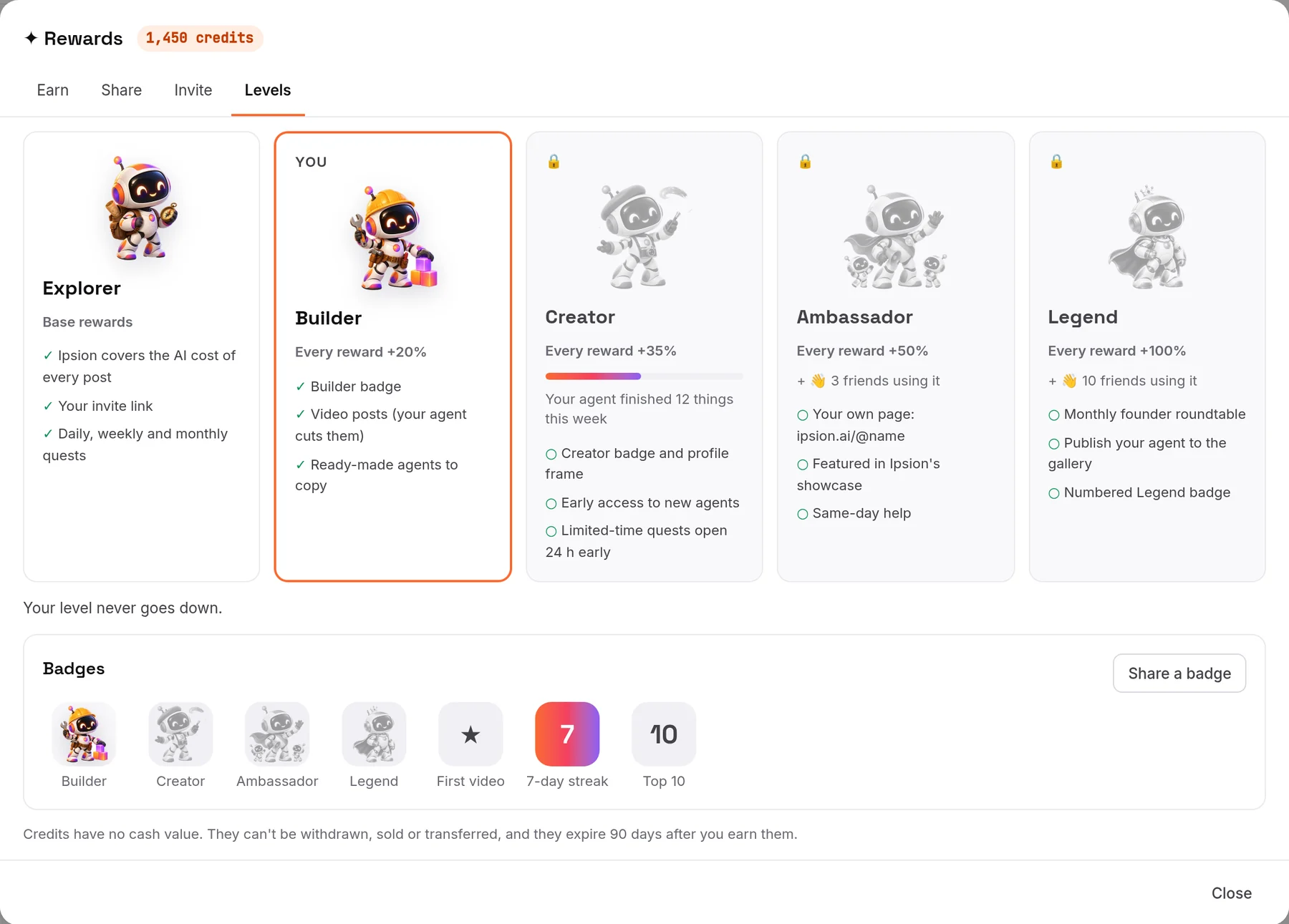
The Earn tab lists the quests for Today, This week and This month, with your progress. The amounts below are the starting ones; the tab always shows the amount for your level.
- Today: Rate an AI reply. A thumbs up or down on a reply from your agent, 50 credits once a day, on a day your agents answered you.
- Today: Use Ipsion 5 days in a row. Rate a reply 5 days in a row for 150 credits more.
- This week: Share 2 posts. 200 credits for each checked post, for your first 2 a week. See Share what you built below.
- This week: a friend joins and uses it 3 days in week 1. 1,000 credits when a friend you invited gets going. See Invite friends below.
- This week: A post gets 1,000 views. 300 credits.
- This month: 4 posts this month. 1,000 credits for 4 checked posts, or for 1 friend who got going.
- This month: A friend buys a plan. 5,000 credits when their first plan payment goes through.
- This month: Top 10 sharer. A badge for the 10 people with the most checked posts.
Do it yourself, or let your agent do it
Rating a reply is a thumbs press in your chat. For a post, your agent does most of the work: it writes the post, and if you ask, it posts it too.
- On the Share tab, say in a sentence or two what you built and pick where to post it.
- Your agent writes the post, with a picture. Ipsion covers the AI cost of writing it. Nothing is posted until you choose to.
- Then pick one: - Post it yourself: press Copy post, post it, paste the post's link and press Check link. - Ask my agent to post it: your agent posts it for you, exactly as written, and hands in the link itself. - Instagram: press Approve & post and Ipsion posts it on your connected Instagram.
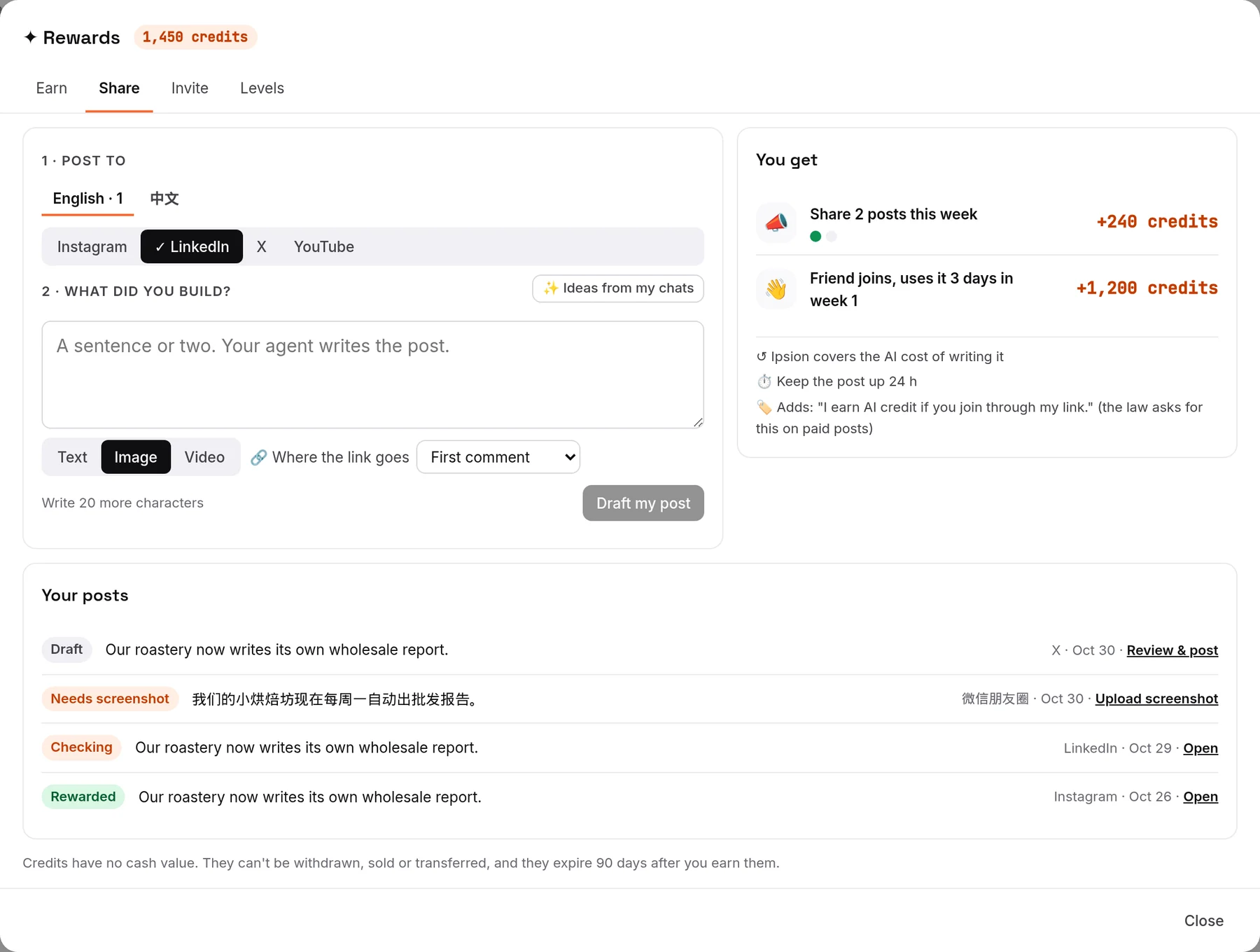
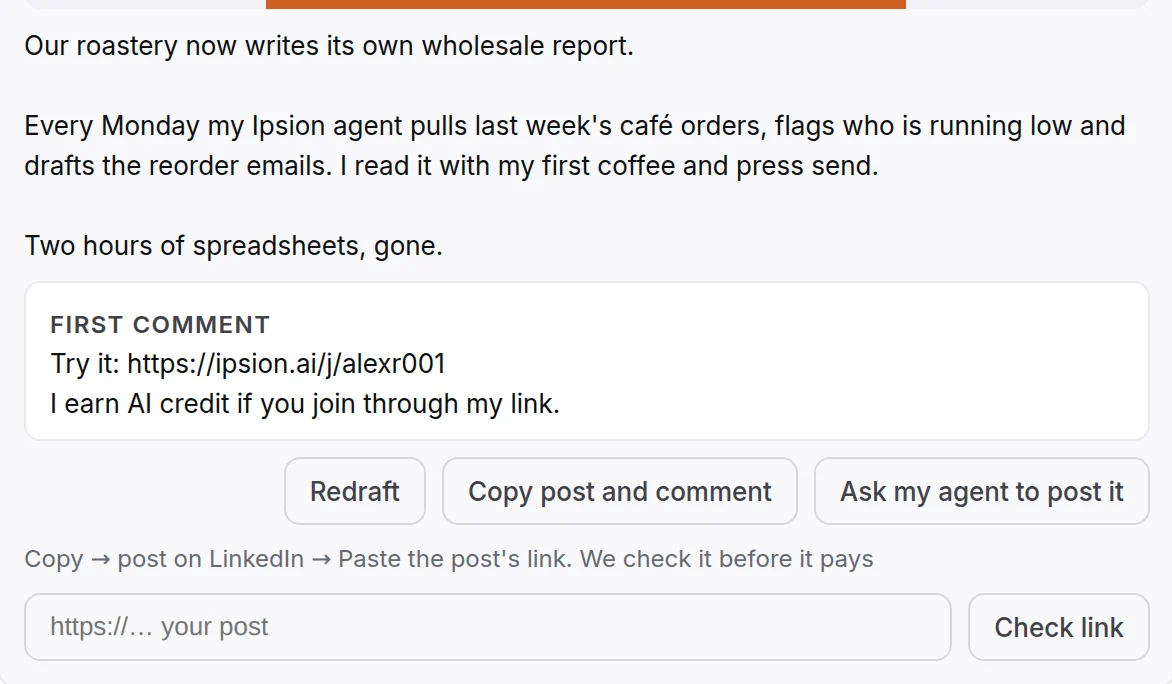
Each post adds one line: "I earn AI credit if you join through my link." The law asks for it on paid posts.
Share what you built: when a post pays
- X, LinkedIn, YouTube, B站, 小红书, and Instagram posts made by hand: we read the link you (or your agent) hand in. It pays when the post is public, carries your invite link, was posted after the draft, and comes from your connected account if you connected one. One post earns once.
- Instagram: a post is checked again after 7 days. If it is gone or no longer has your link, its share credit is taken back and it shows Taken down. Your level stays.
- 微信朋友圈: post it yourself, then press Upload screenshot with a screenshot of the live post. It must show the picture made for the post, and the post must not be Private.
- 微信视频号: we can't check these posts yet, so they don't pay the share credit. Friends who join through your link still count.
Your posts shows where each one is: Draft, Checking, Needs link, Needs screenshot, Rewarded, Not found or Taken down.
Invite friends
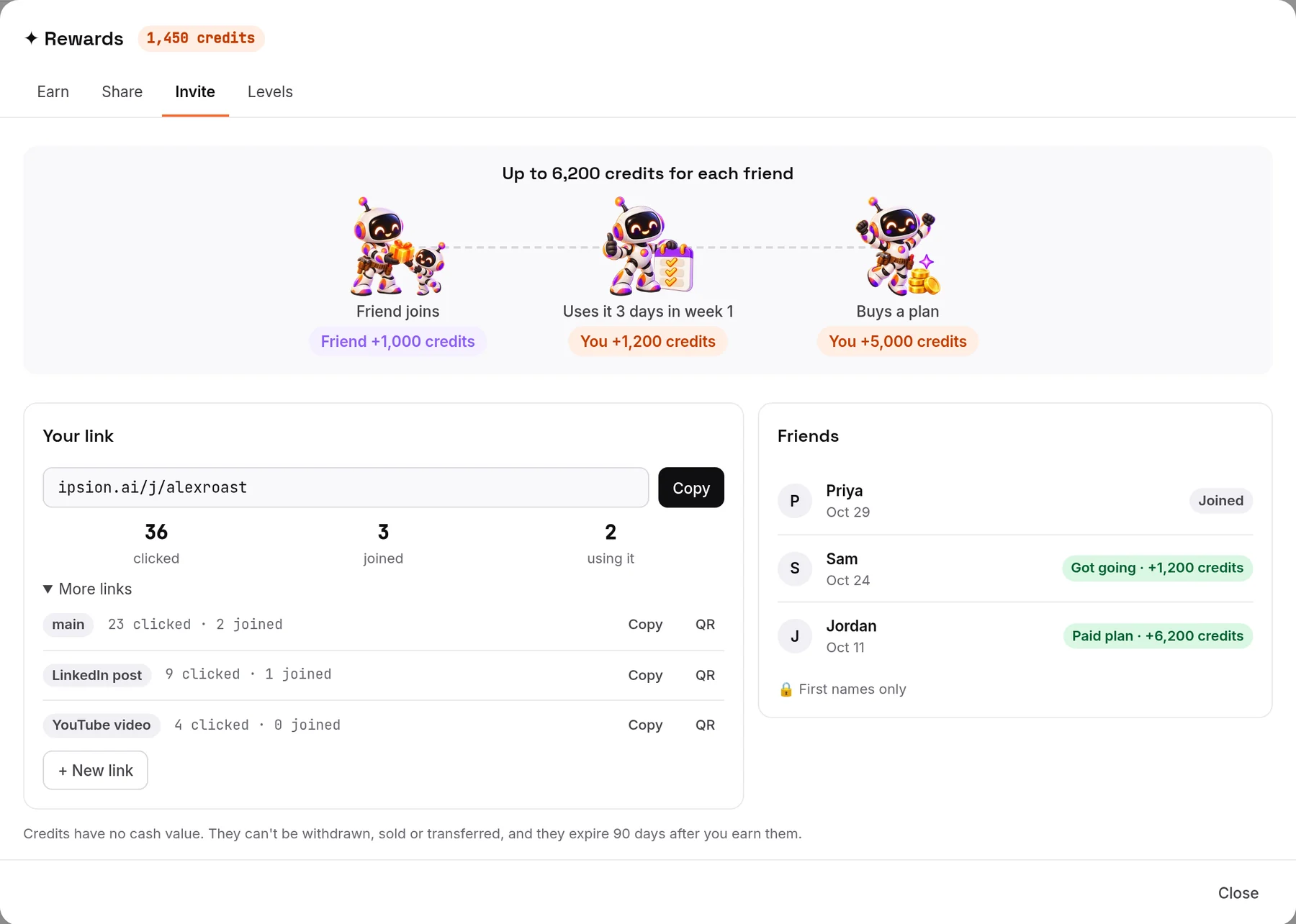
The Invite tab has your own link. Press Copy and send it to a friend. Under More links you can make a link for each place you post, with a QR code, and see how many people clicked and joined through each one.
- Your friend gets 1,000 credits to start.
- You get 1,000 credits when they get going: they use their agents on 3 different days in their first 7.
- You get 5,000 credits when their first plan payment goes through.
Your friend has to be someone else: a sign-up with your own email address, or an address at your own company's domain, doesn't count. Under Friends you see each friend's first name and how far they got: Joined, Got going or Paid plan.
How your credits are spent
- Credits pay for extra AI use past your plan's monthly allowance: they are used only after it runs out.
- Credits expire 90 days after you earn them. The credits that expire soonest are used first.
- The Earn tab shows when your credits expire: Use by a date, or in red, how many expire in the next 14 days.
- Your plan's usage panel shows an Earned credits line while you have credits left.
Credits have no cash value. They can't be withdrawn, sold or transferred, and they expire 90 days after you earn them.
Questions
Ask about Quests & Rewards at support@ipsion.ai. See Contact us for what to include.
Didn’t answer your question? Email support@ipsion.ai and say what you were trying to do.