Connect Zoom
What it does
Your own Ipsion server checks Zoom twice an hour for meetings you hosted that have ended, and once right after you connect. For each one it reads Zoom's AI Companion meeting summary and downloads the cloud-recording transcript, then saves them, dated, in your agent's private memory on your server. The first check brings in the meetings of the past 7 days.
It only reads. It never creates, changes, joins or deletes a meeting or a recording. It doesn't read meetings you only attended, and it doesn't download audio or video. Your notes are not shared or sold.
What you need
- An Ipsion account.
- A Zoom account with AI Companion meeting summaries on, or cloud recording with audio transcripts on. Meetings without either have nothing to bring in.
Connect Zoom
- Press Connected accounts: the link icon next to your name, at the bottom left.

- Find Zoom under Ready to connect and press Connect.

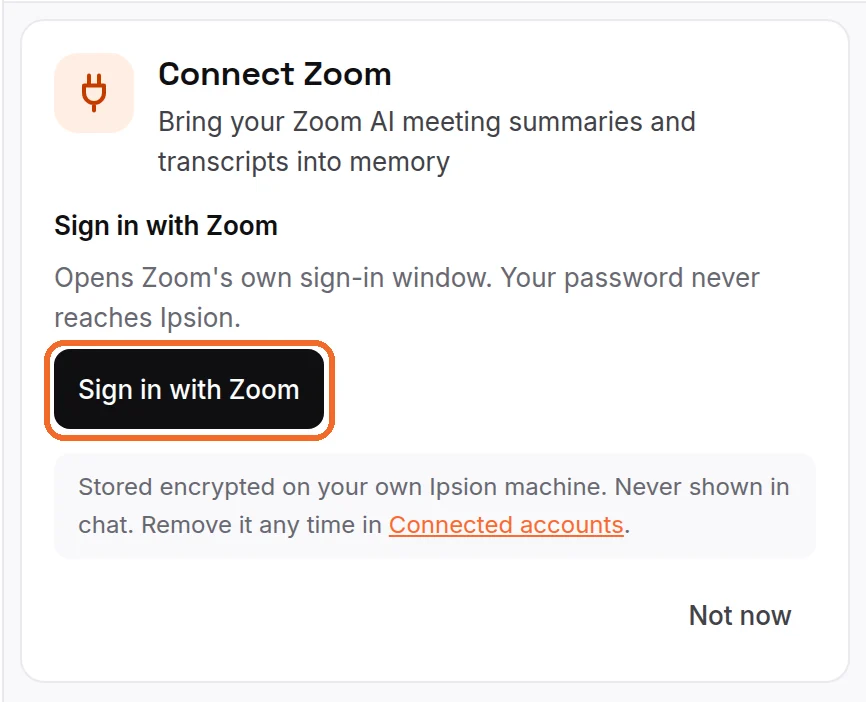
- Press Sign in with Zoom. Zoom's own window opens on zoom.us: sign in there, check what Ipsion asks to read, and press Allow. Your Zoom password never reaches Ipsion.
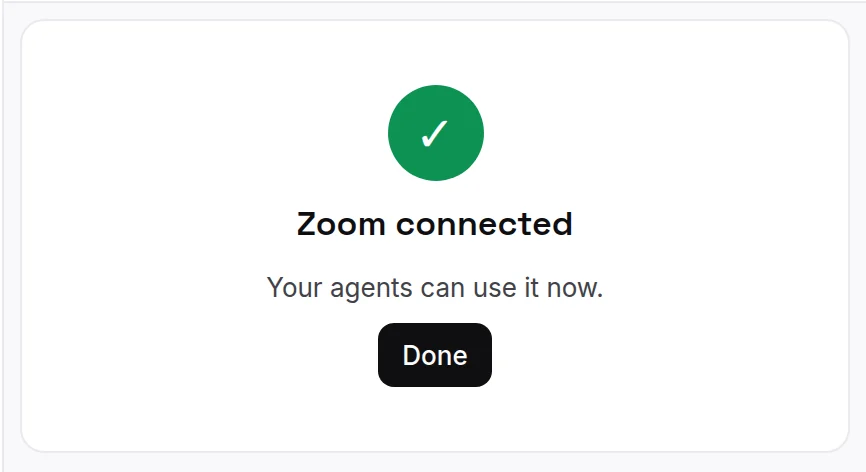
- Back in Ipsion you see Zoom connected. In Connected accounts, Zoom now shows Connected and the Zoom email you signed in with.
Use it
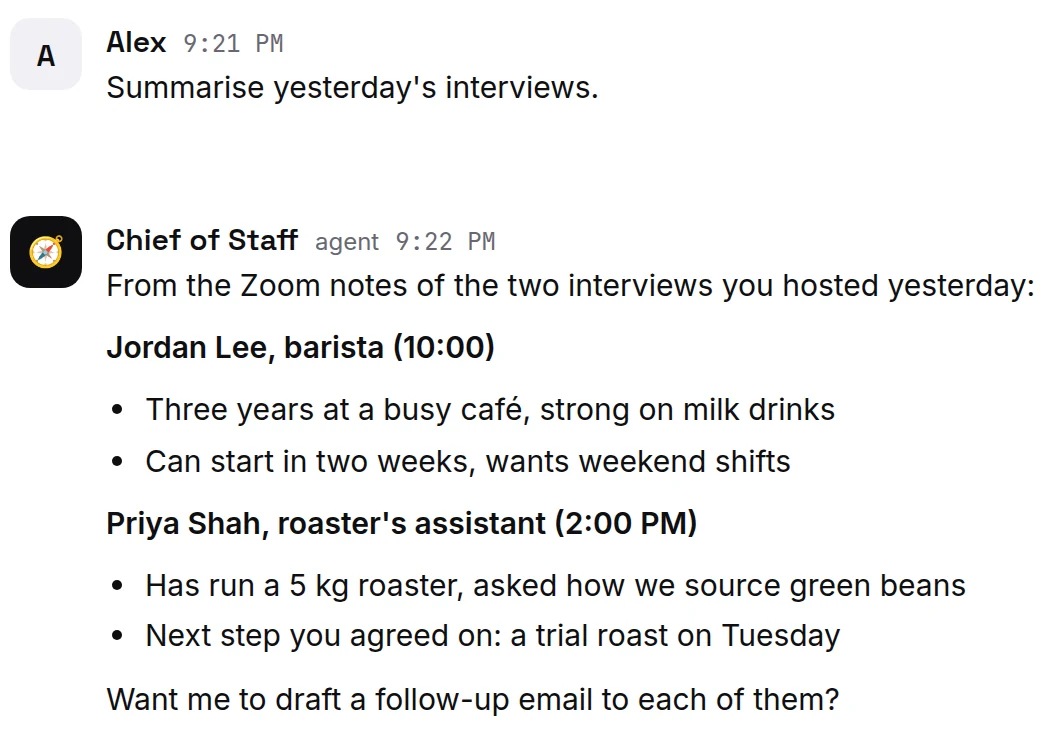
Ask your agent about your meetings in plain words, for example: "Summarise yesterday's interviews", "What did we agree with Priya?" or "List the action items from this week's calls." A meeting shows up within about half an hour of its summary or transcript being ready in Zoom.
Disconnect Zoom
In Connected accounts, press Disconnect next to Zoom. Ipsion asks Zoom to revoke its access and deletes the stored Zoom sign-in from your server. No more meetings come in after that.

You can also remove the app from Zoom's side: on zoom.us, open App Marketplace, then Manage, then Added Apps, and press Remove next to Ipsion.
Delete imported notes
Notes already brought in stay until you delete them; disconnecting doesn't remove them. To delete a meeting's notes, ask your agent, for example: "Delete the notes from yesterday's Zoom interview with Jordan." To delete all of them, email support@ipsion.ai with the subject "Privacy request" (see Contact us).
Questions about Zoom and Ipsion: Contact us.
Didn’t answer your question? Email support@ipsion.ai and say what you were trying to do.